
How to Remove and Reset Google Authenticator (2FA)?
April 10, 2024 at 01:58 PMGoogle Authenticator code (2FA) is available
Google Authenticator (2FA) cannot be changed directly. To remove the old Google Authenticator and set a new one, please follow these steps in How to Link Google Authenticator (2FA).
To enhance the security of your account and assets, we strongly recommend linking Google Authenticator to your account.
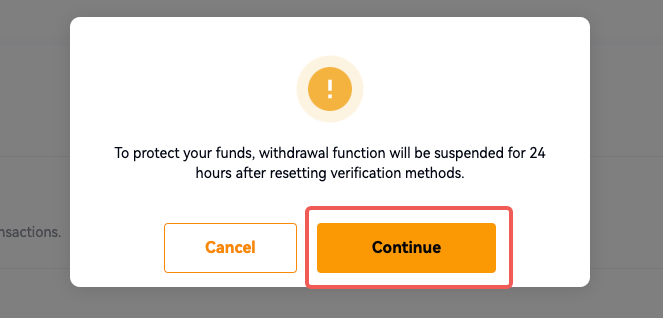
Note: To protect your funds, the withdrawal function will be suspended for 24 hours after resetting verification methods.
Web
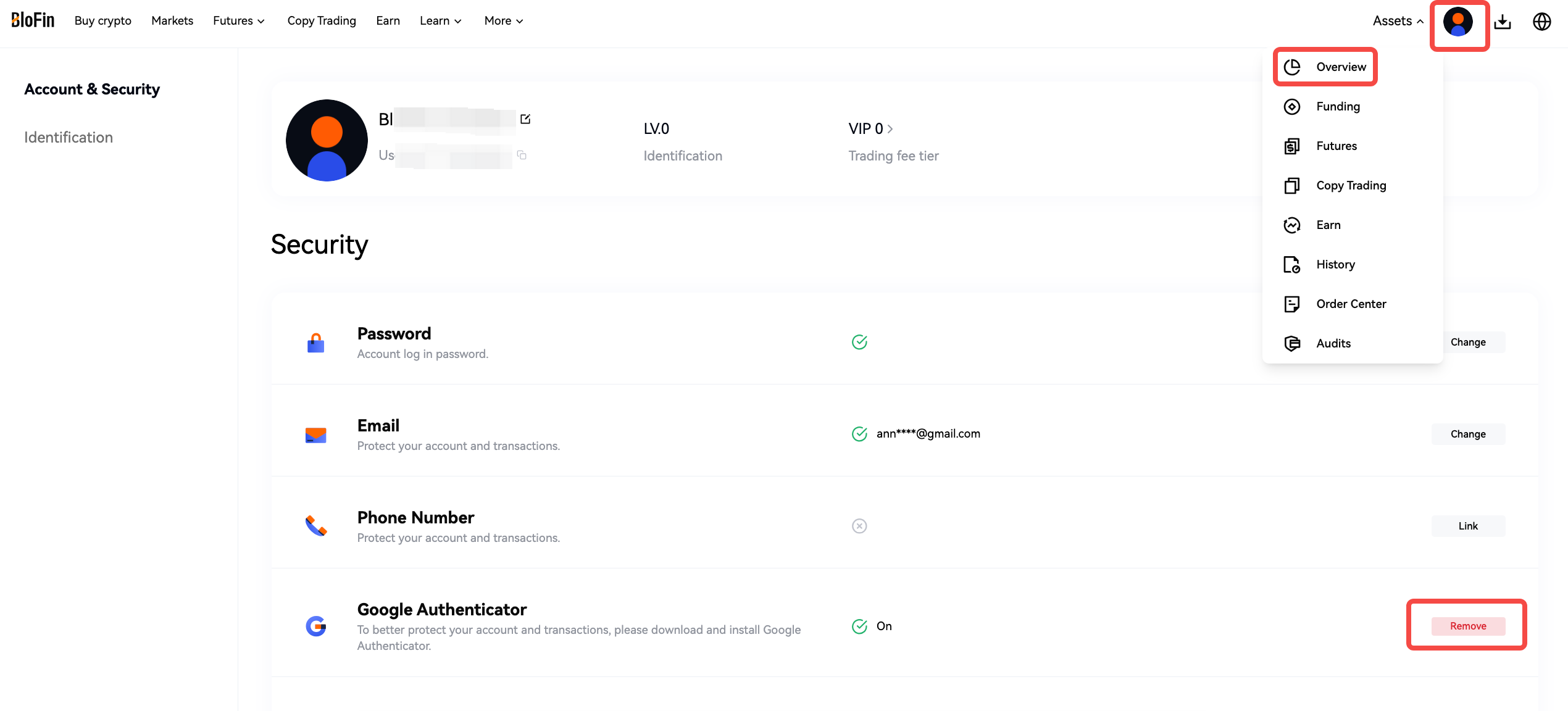
Log in to your BloFin account and click on your user avatar in the upper right corner.
Go to [Overview] and select [Account & Security].
Select Google Authenticator (GA) section, click [Remove].
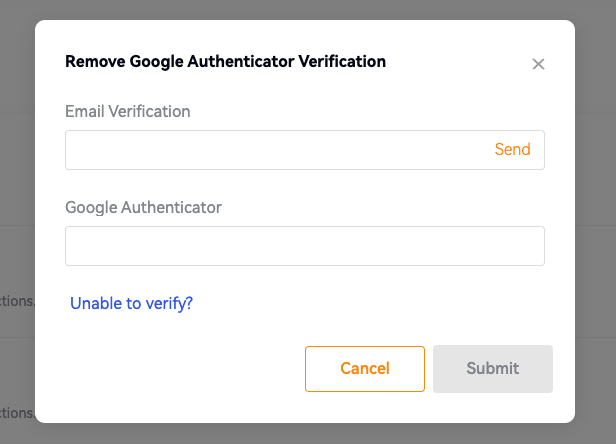
A pop-up window will appear, click [Continue] to proceed to Remove Google Authenticator Verification.
App
Log in to your BloFin account and click on your user avatar.
Select [Account & Security].
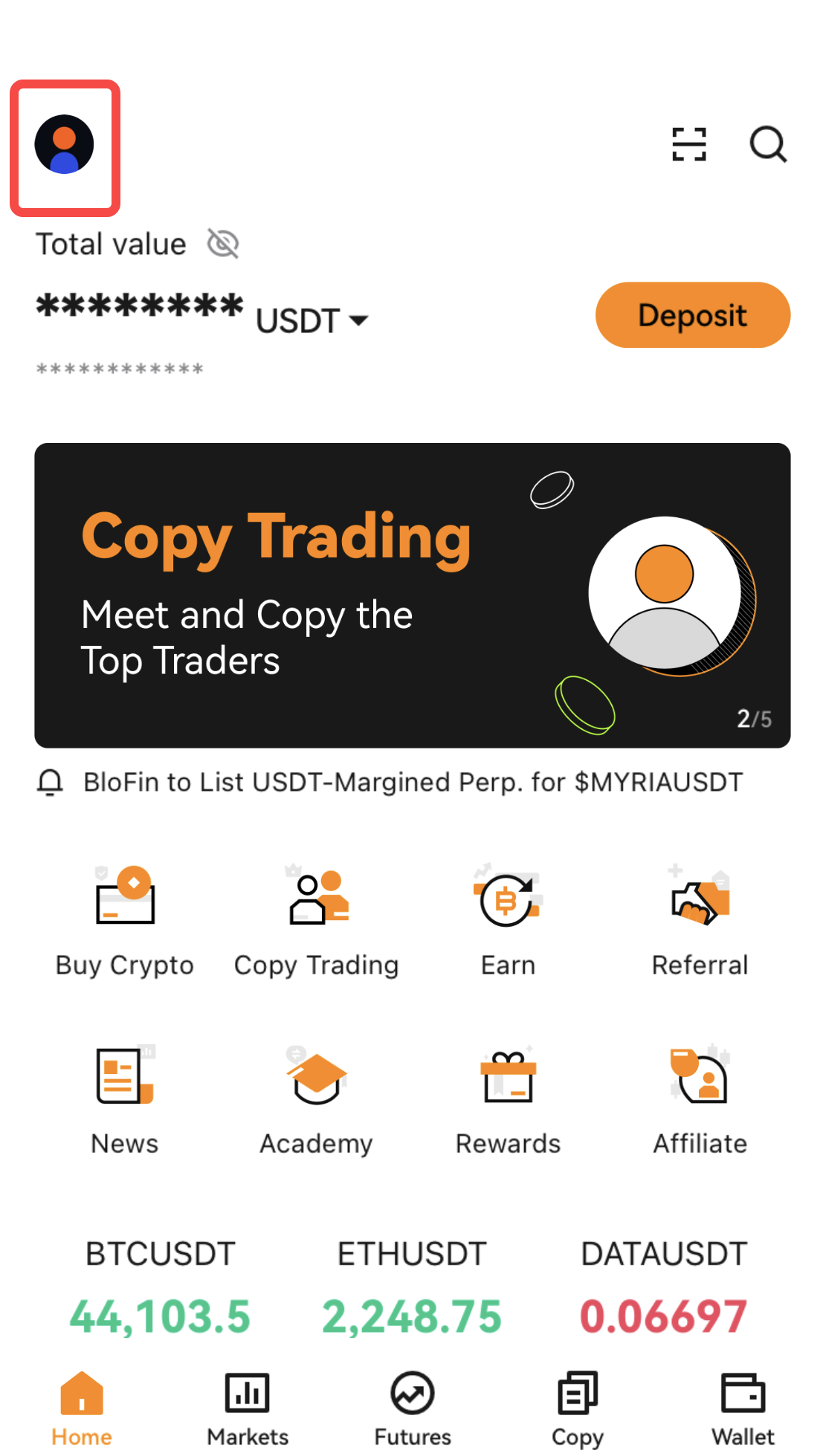
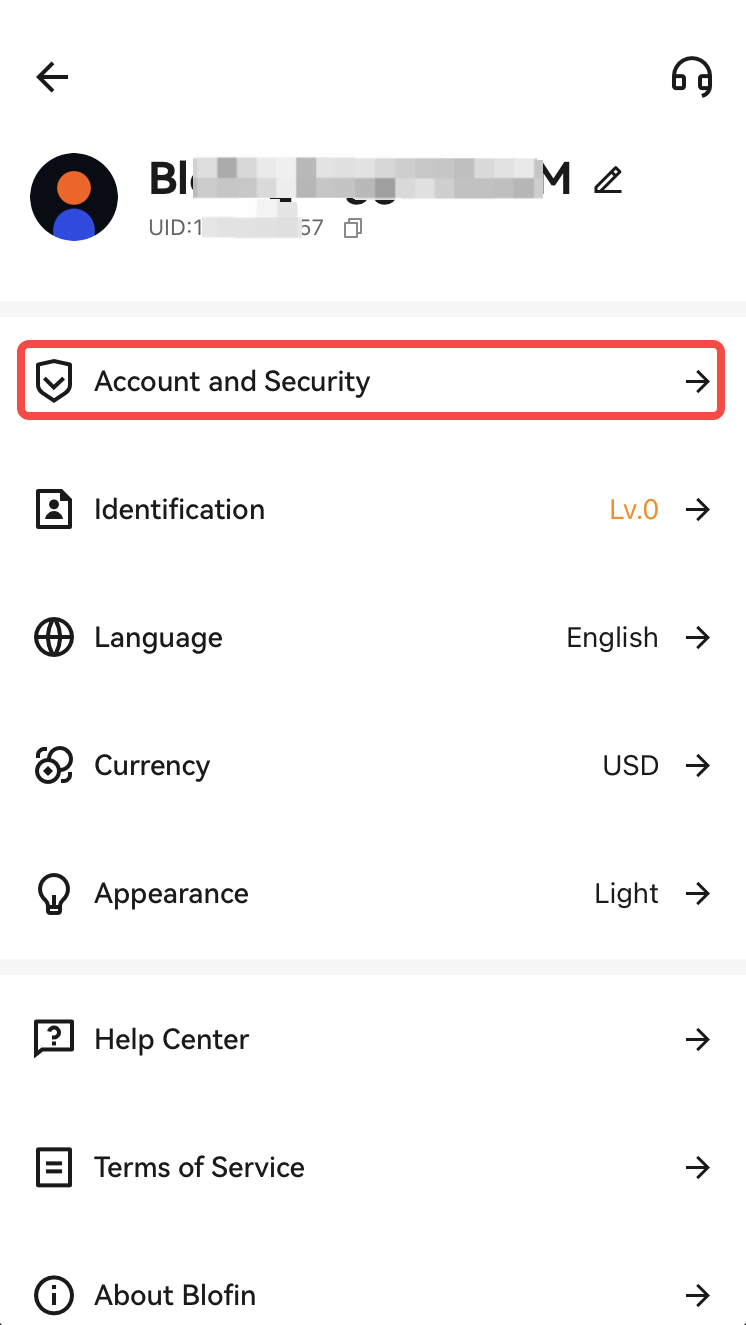
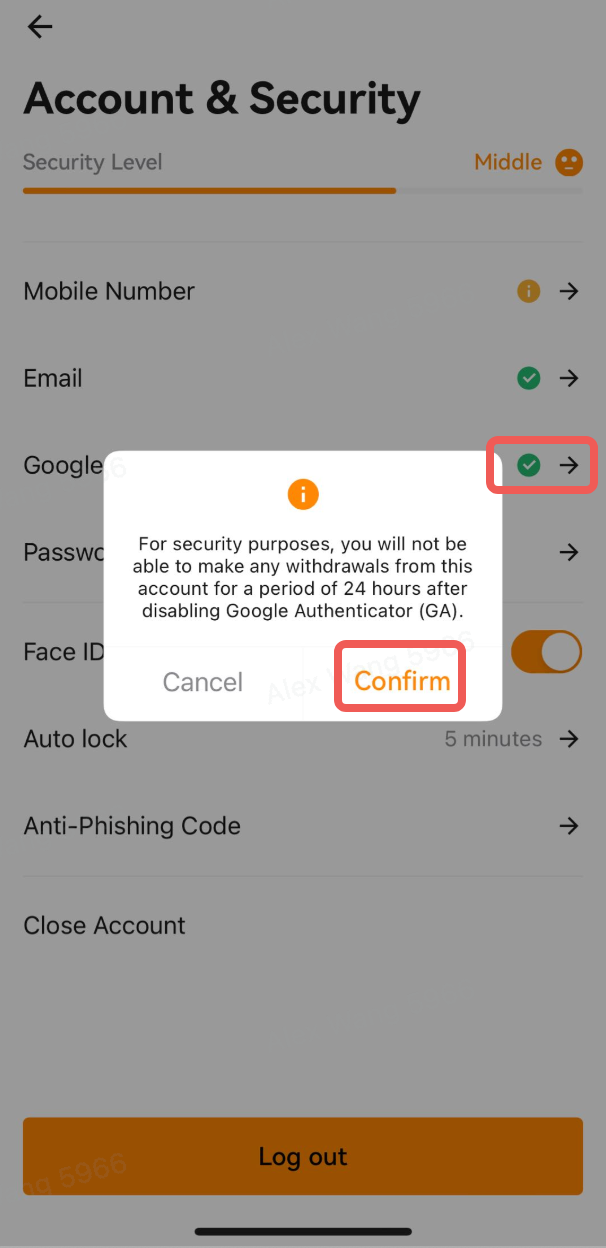
Go to Google Authenticator (GA) session and click [→]. A pop-up window will appear, click [Confirm] to proceed to Google Authentication.
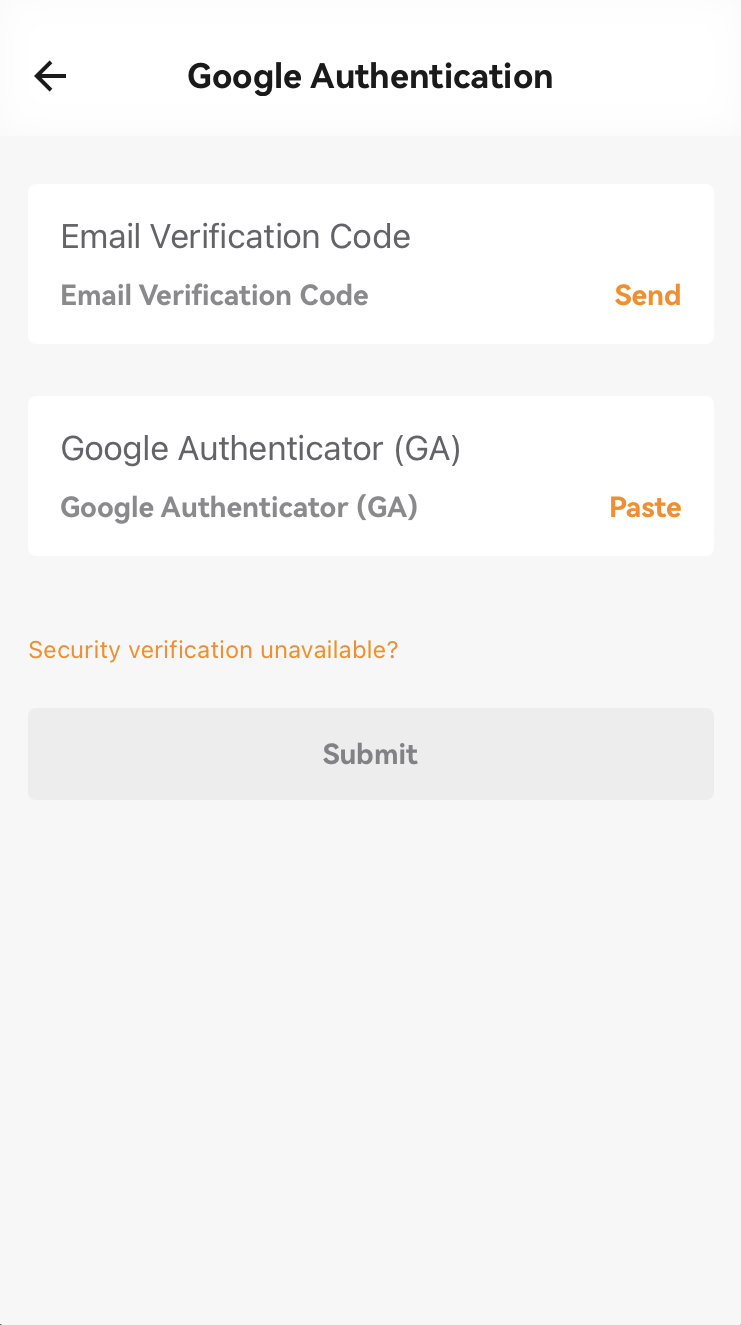
Google Authenticator code (2FA) is unavailable
If your account is bound to [phone number + Email + Google Authenticator] simultaneously and one of these options cannot be verified, you can visit https://blofin.com/reset-security and remove the unavailable security item by verifying the other two security items.
If your account is bound to [phone number/Email + Google Authenticator] simultaneously, follow the steps below to reset Google Authenticator:
Note: To protect your funds, the withdrawal function will be suspended for 48 hours after resetting verification methods.
Web
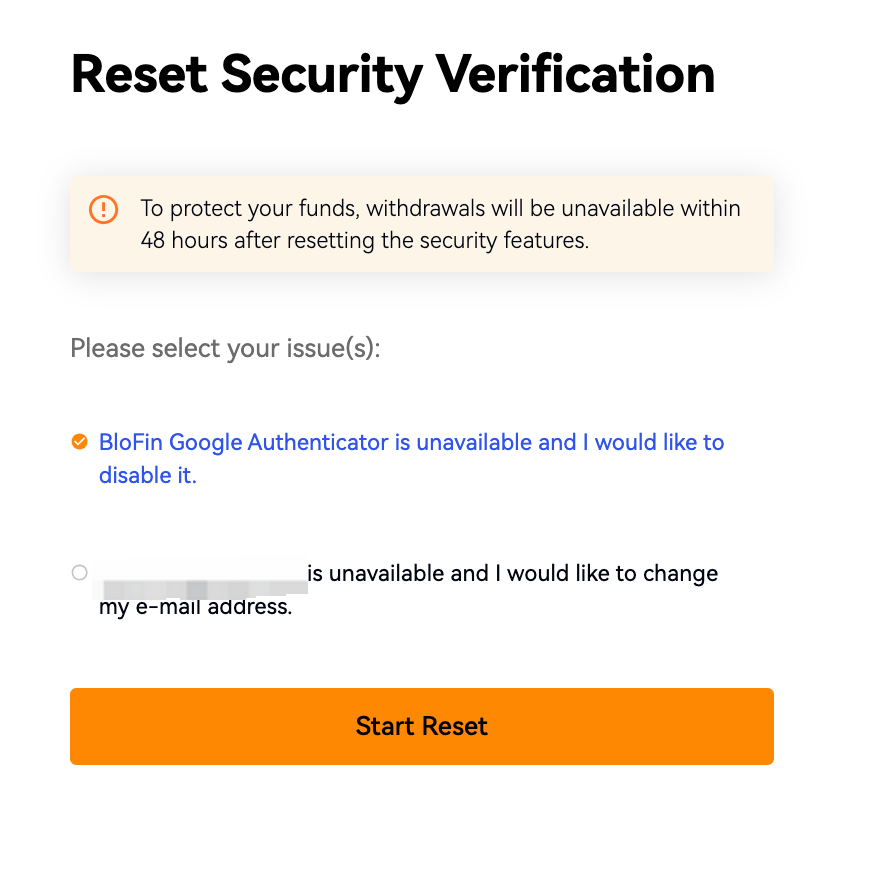
Click here to reset Google Authenticator (2FA): https://blofin.com/reset-security. Alternatively, click [Unable to verify] to initiate the reset process.
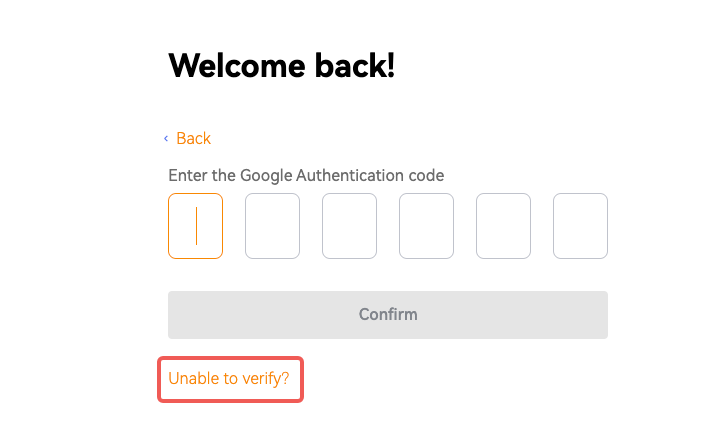
On the Reset Security Verification page, select your issue and click [Start Reset].
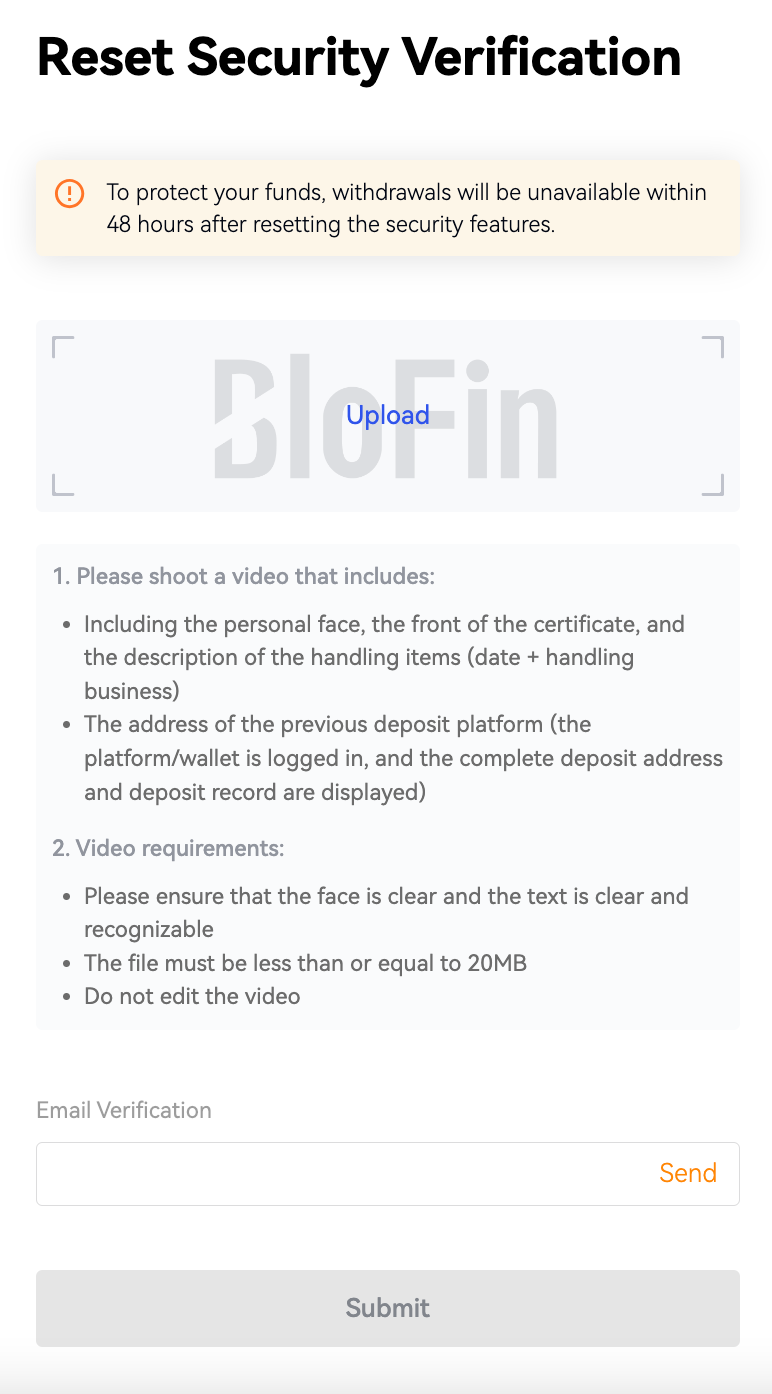
Verify your email code/SMS code, then click [Submit].
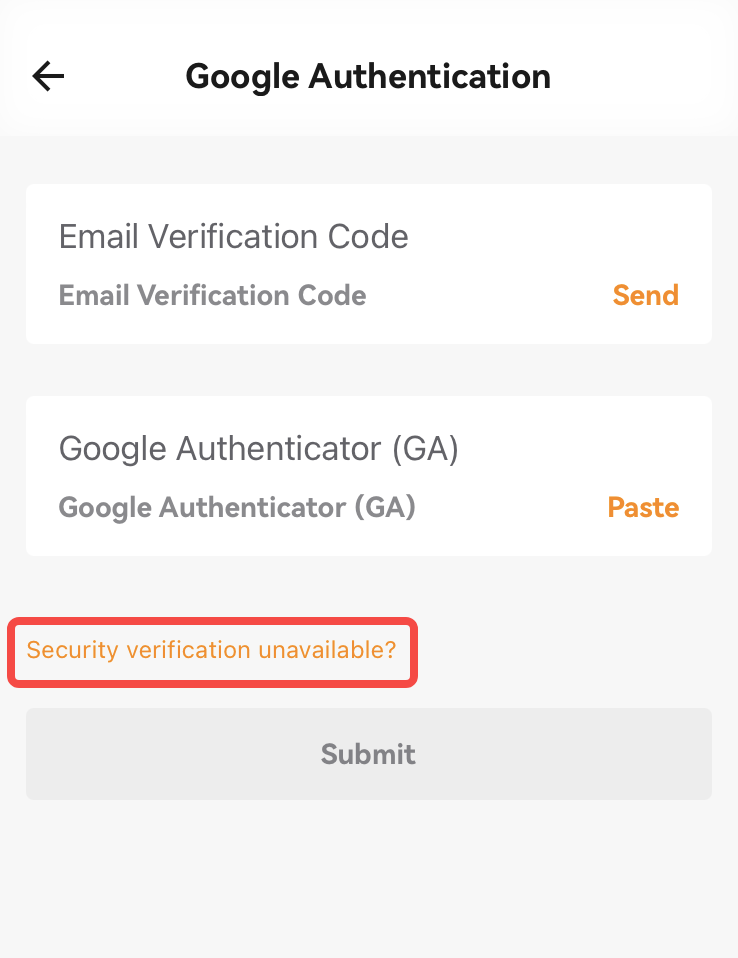
APP
Tap [Security verification unavailable] to access the Reset Security Verification interface.
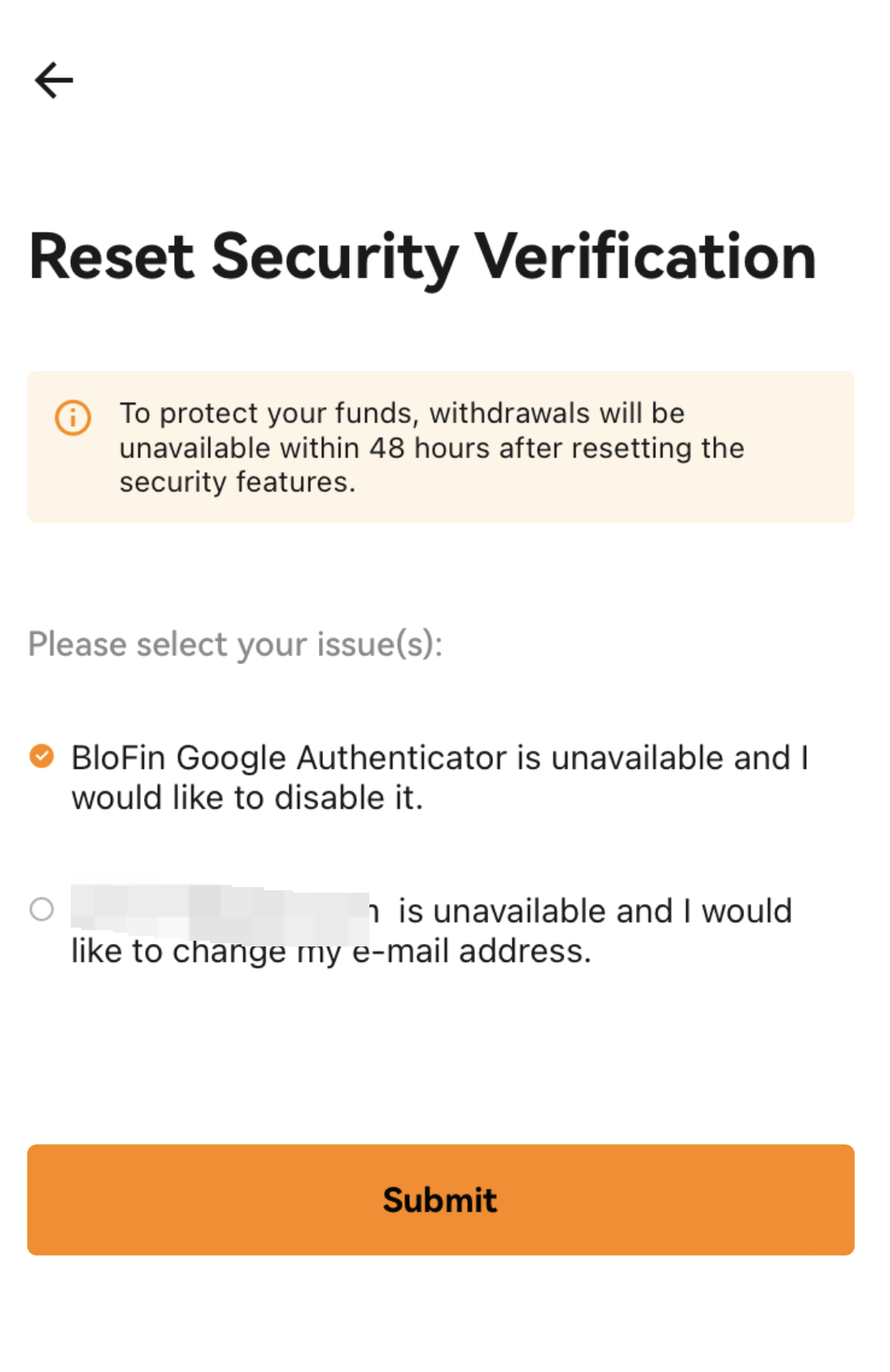
Follow the detailed instructions and requirements to prepare and upload a video.
Verify your email code and SMS code, then click [Submit].
Your request will be reviewed within 24 hours, and the result will be sent to you via email.
To protect your funds, the withdrawal function will be suspended for 48 hours after resetting verification methods.