
How To Withdraw From Blofin?
August 23, 2025 at 01:17 PMWithdrawing crypto from your BloFin account is simple. Please carefully follow the steps below to avoid errors.
How to Withdraw on Web
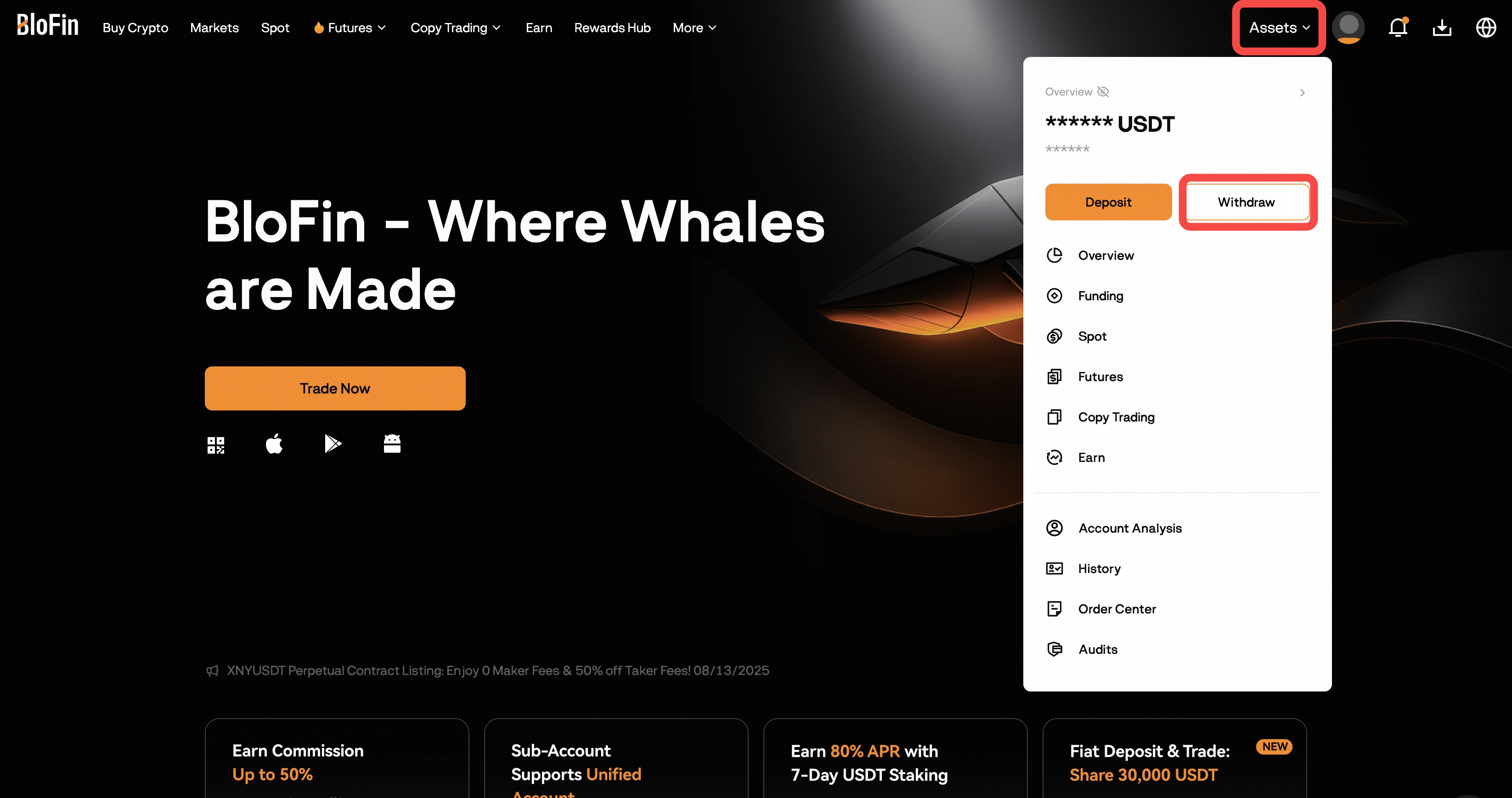
Log in to your BloFin account at https://blofin.com/ and go to Assets → Withdraw, or click the Withdraw button anywhere on the Assets Page.
-
Make sure the funds you want to withdraw are in your Funding Account.
If they are in another account (e.g., Spot, Futures, Earn), transfer them to Funding first.
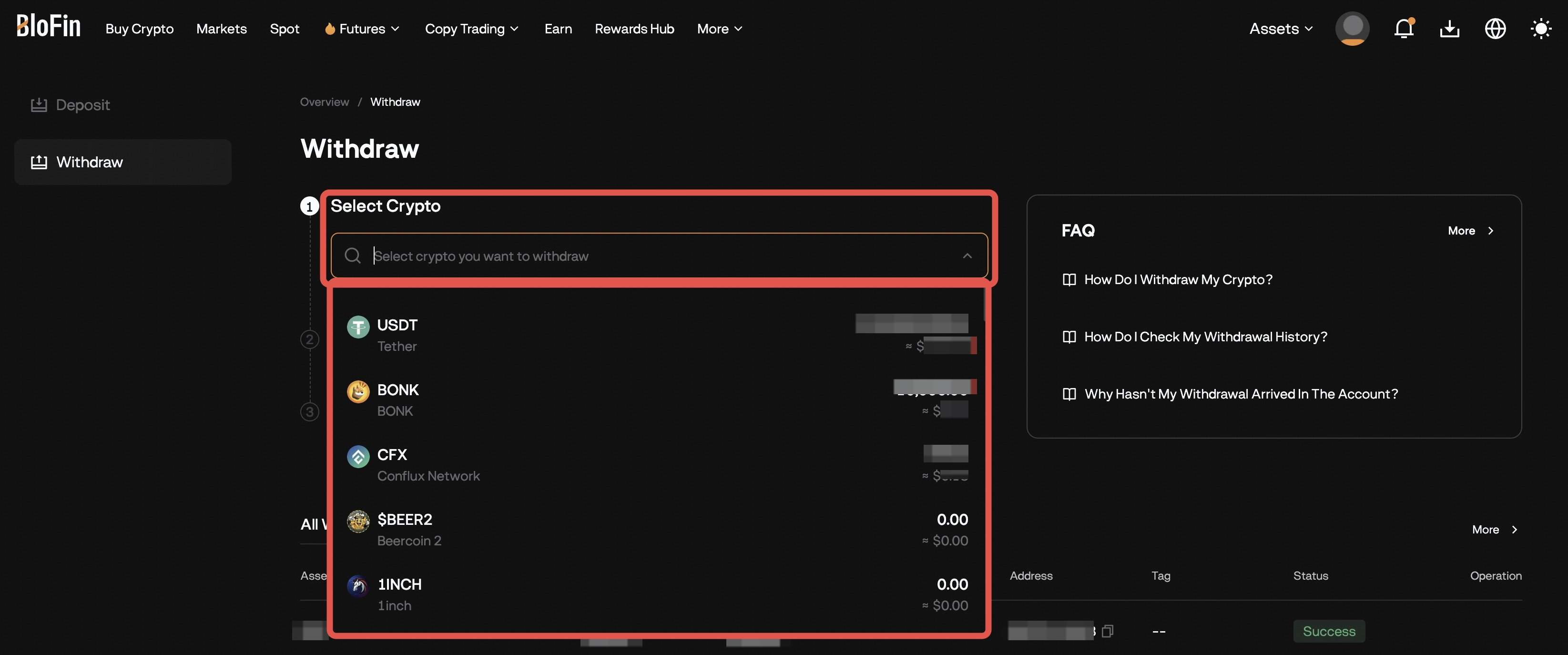
Select the cryptocurrency you want to withdraw. (e.g., USDT)
-
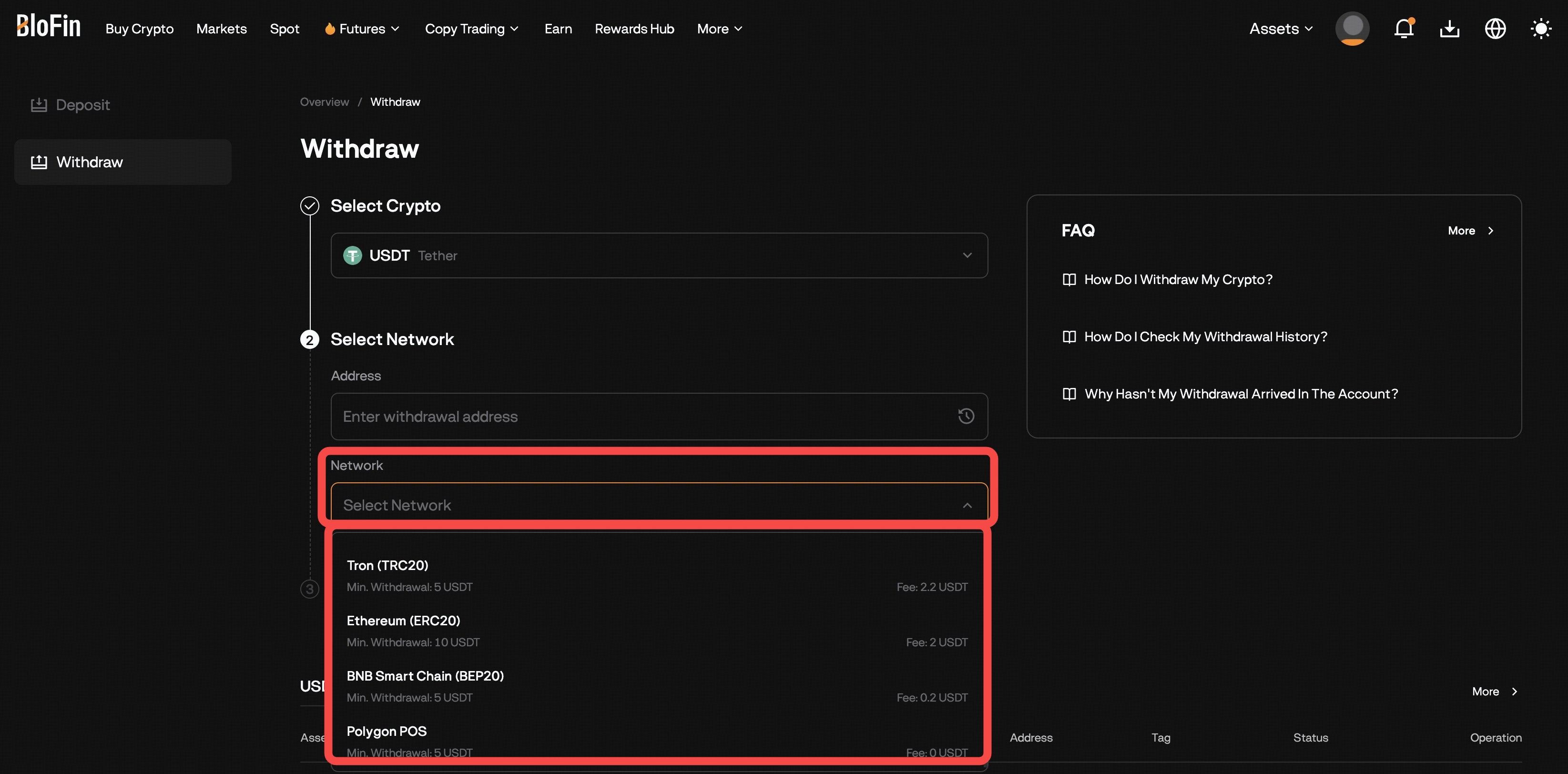
Choose the withdrawal network (e.g., TRC20, ERC20, BEP20).
⚠️ The withdrawal network must match the deposit network of the receiving platform.
-
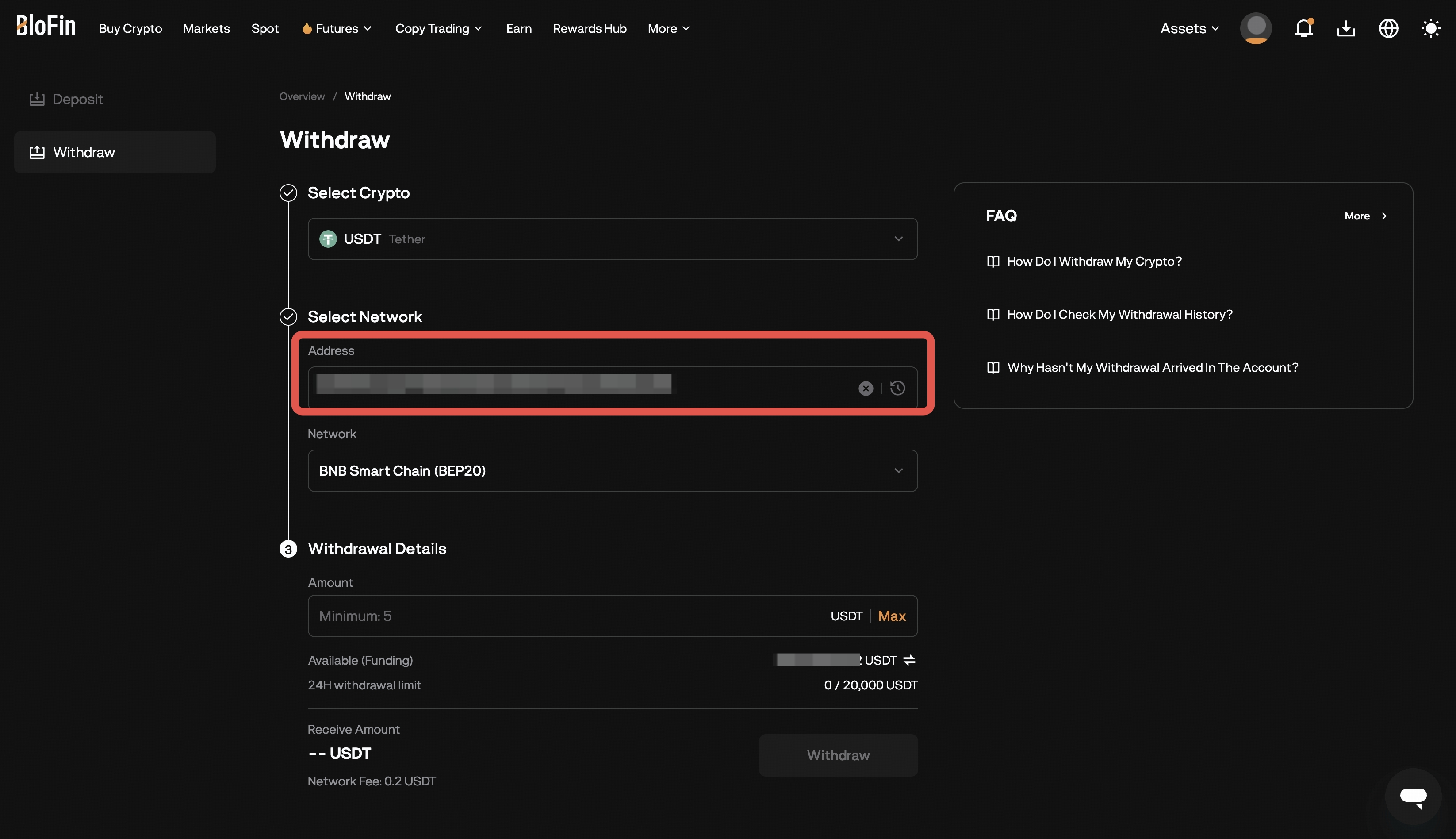
Enter the recipient’s wallet address.
If required, also enter the Memo/Tag (e.g., XRP, XLM, TON).
-
Enter the amount you want to withdraw and Review the network fee displayed on the page.
Check the minimum withdrawal amount and ensure your amount is above it.
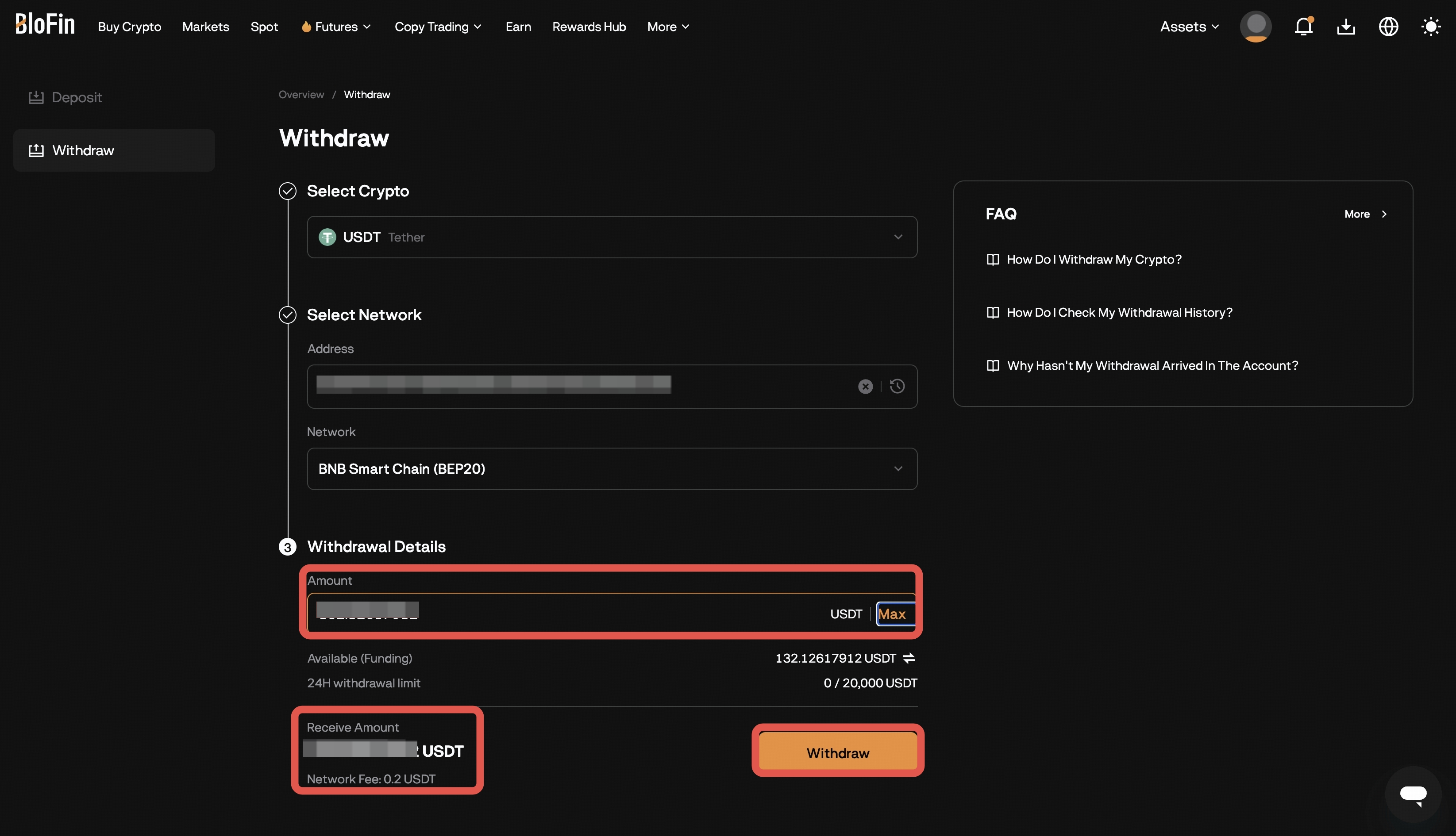
Click withdraw and confirm the details once again.
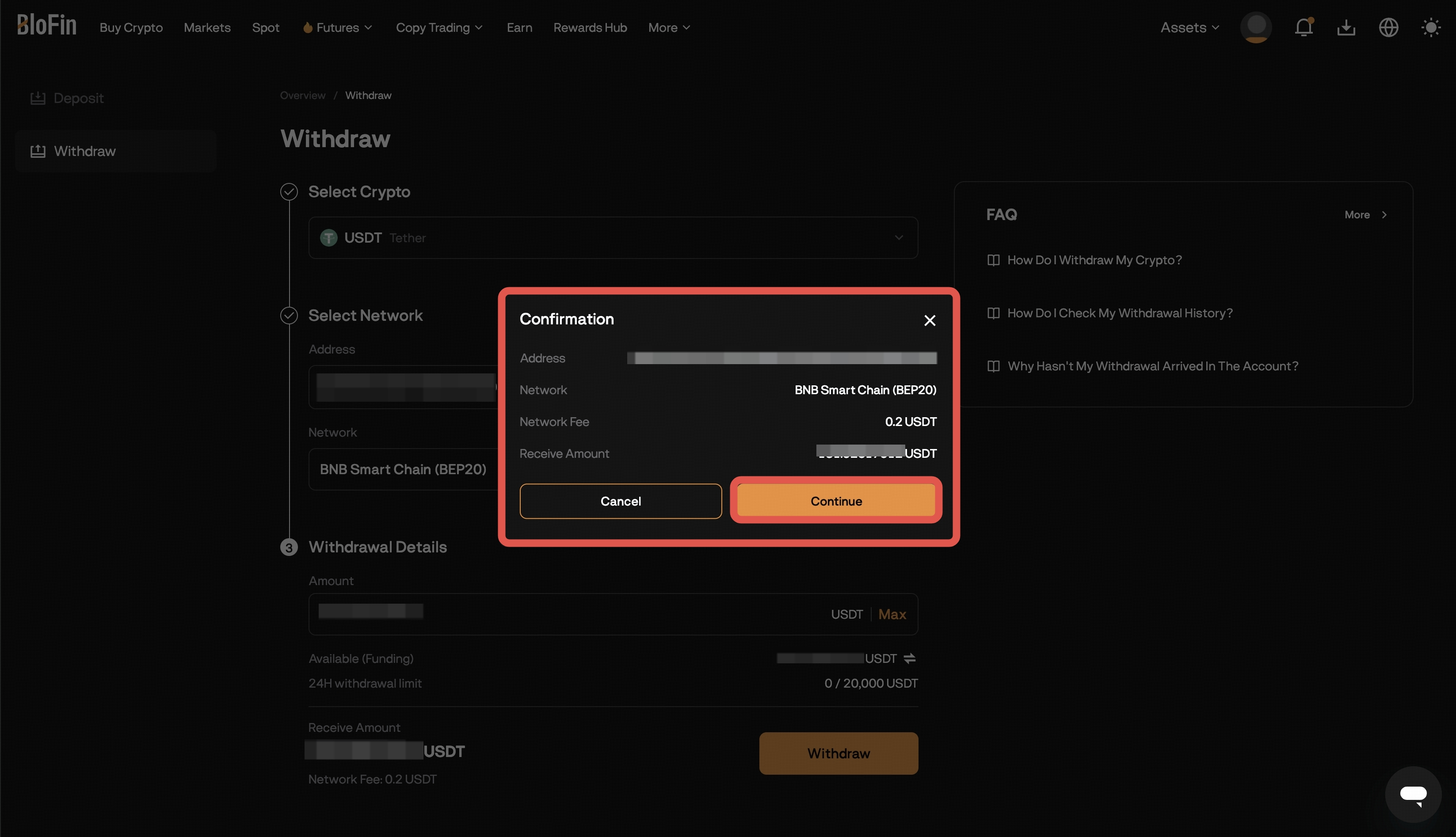
-
Complete the required security verification (email code, SMS, 2FA, etc.).
When SMS or email verification is required, click [Send] to trigger the delivery.
Codes are valid for 5 minutes.
Please avoid clicking on [Resend] immediately after the 60-second timer. We highly recommend waiting within the 5-minute validity period for the code to arrive.
If the code has still not arrived after 5 minutes, then click [Resend] to request a new one.
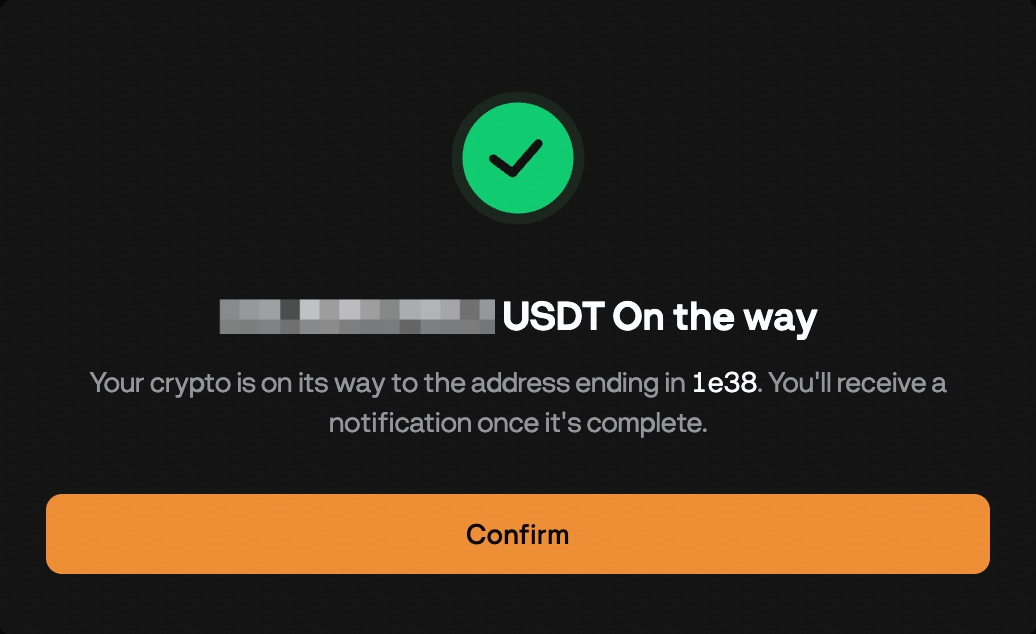
Once submitted, your withdrawal will be processed and credited to the destination wallet after blockchain confirmation.
How to Withdraw on App (iOS & Android)
-
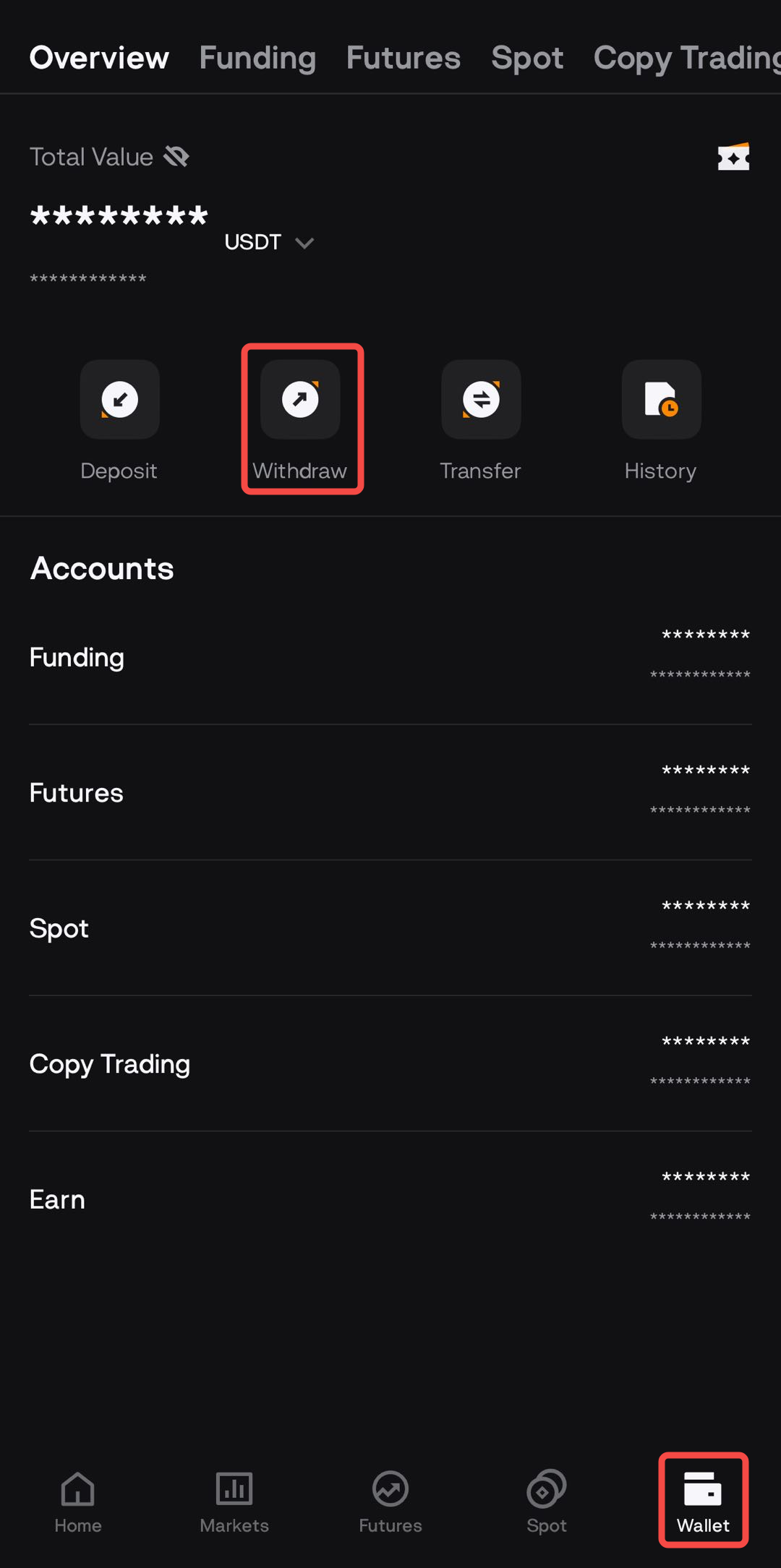
Log in to your BloFin App. Tap Wallet → Withdraw, or click the Withdraw button on the Wallet page.
-
Make sure the funds you want to withdraw are in your Funding Account.
If they are in another account (e.g., Spot, Futures, Earn), transfer them to Funding first.
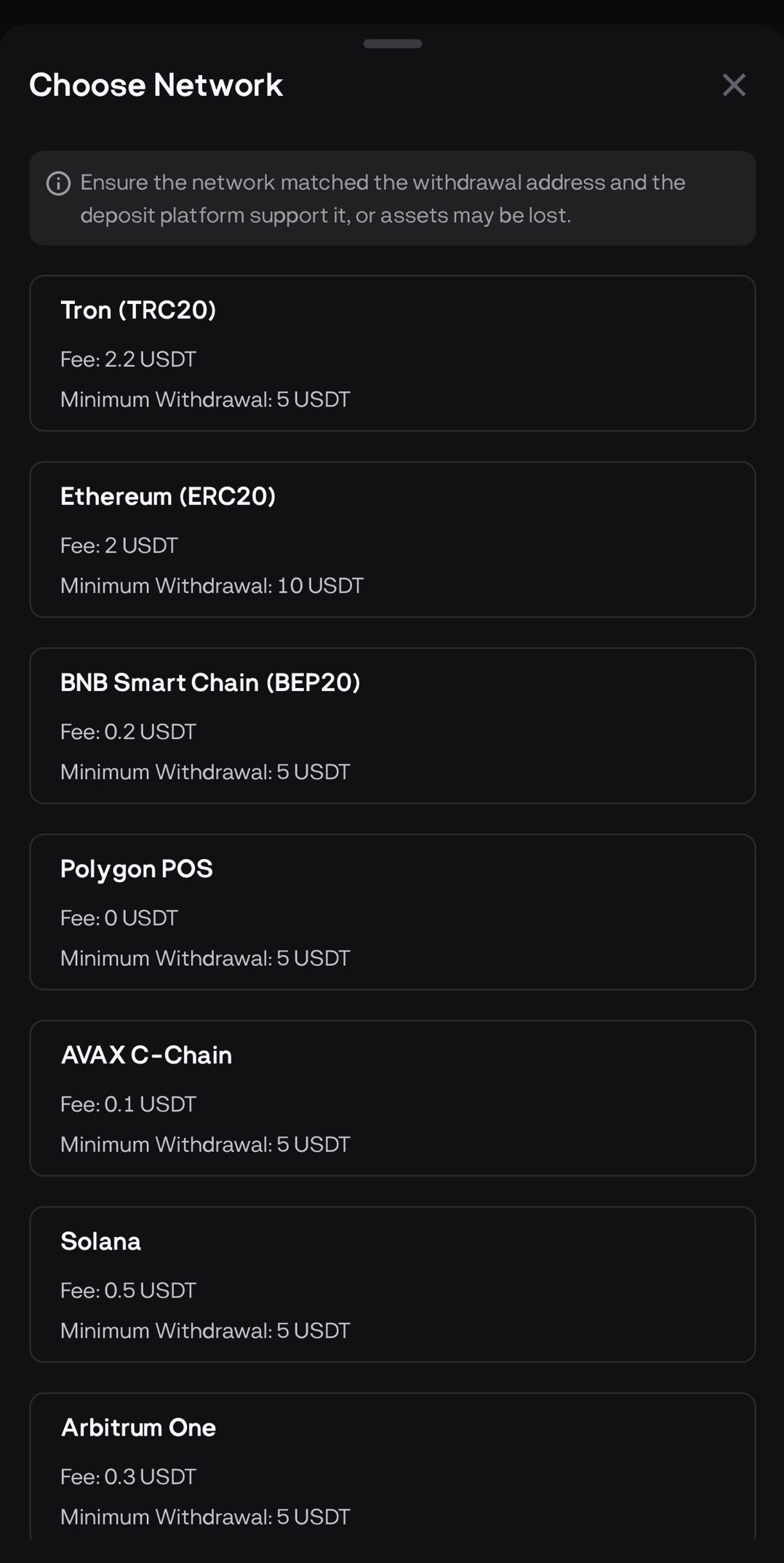
Select the cryptocurrency you want to withdraw (e.g., USDT) and choose the withdrawal network (e.g., TRC20, ERC20, BEP20).
⚠️ The withdrawal network must match the deposit network of the receiving platform.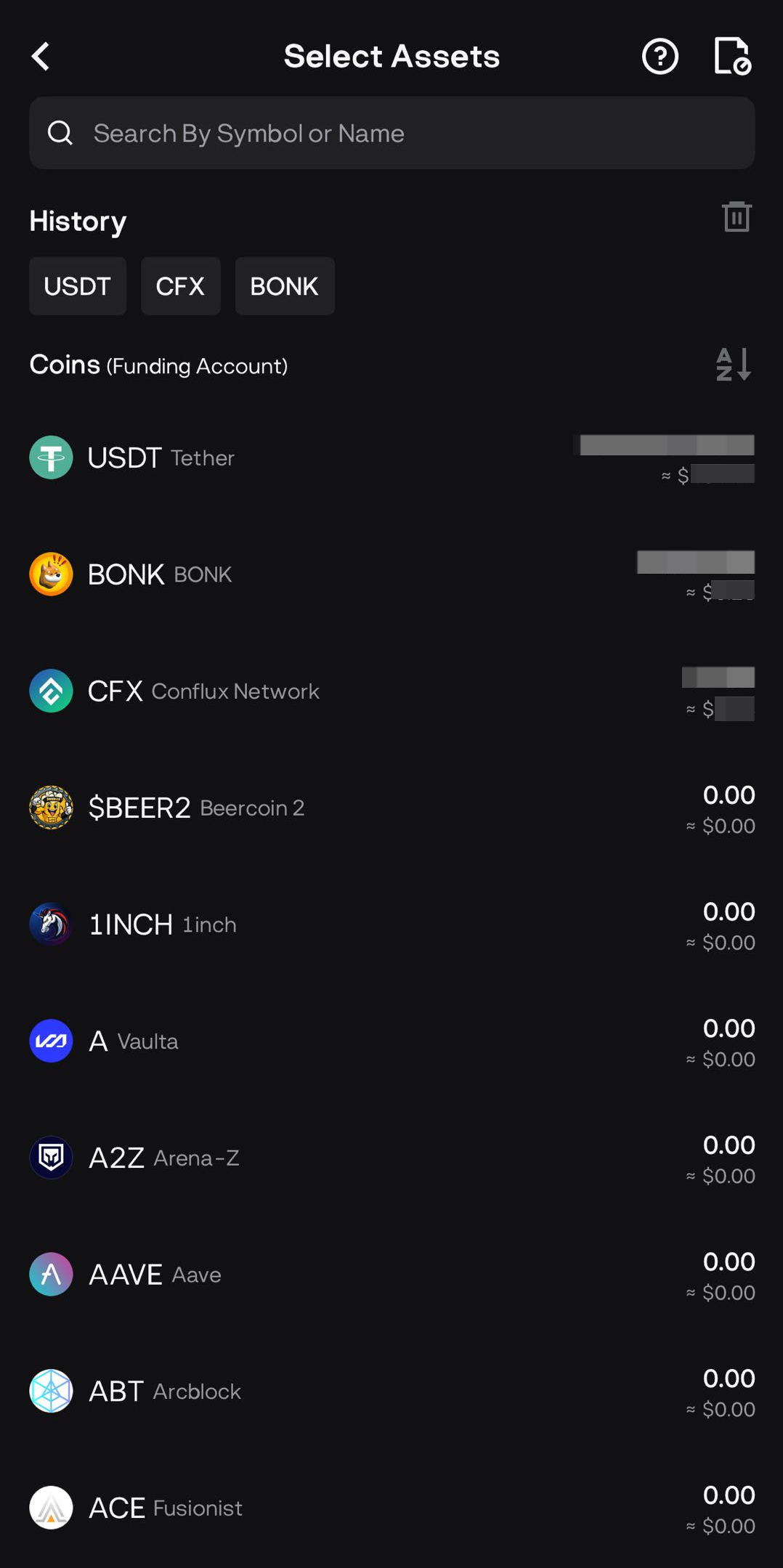
-
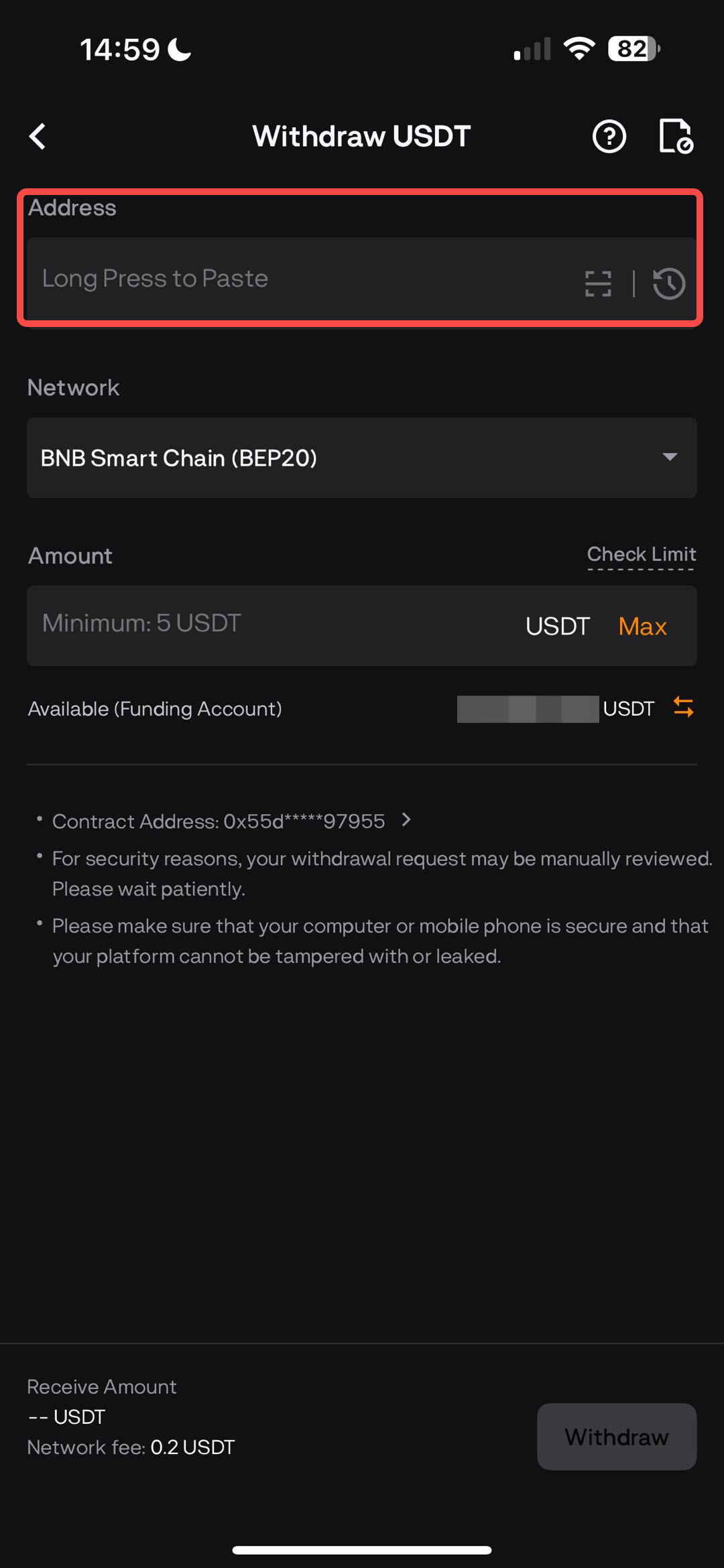
Enter the recipient’s wallet address.
-
If required, also enter the Memo/Tag (e.g., XRP, XLM, TON).
-
-
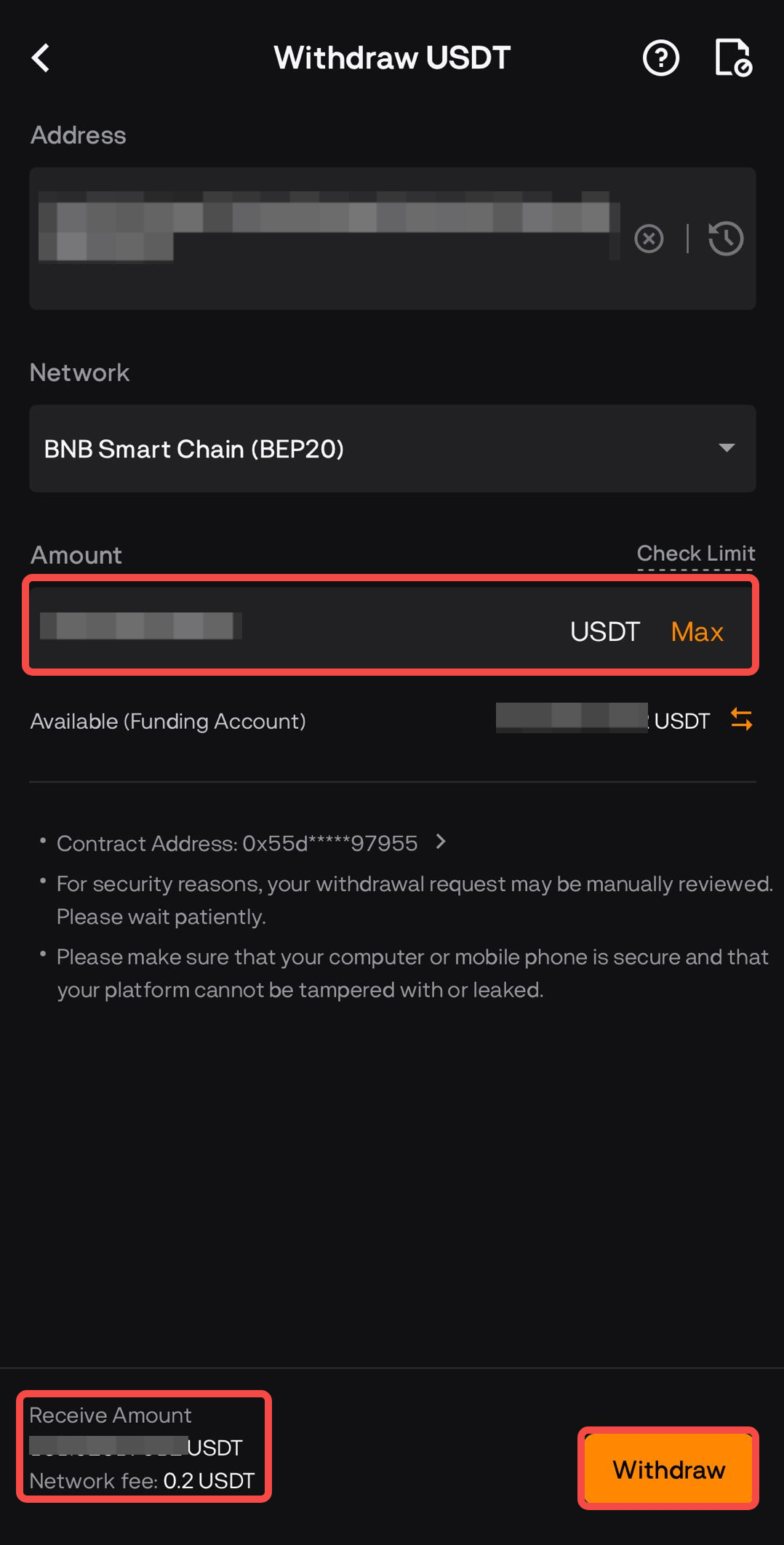
Enter the amount you want to withdraw and review the network fee displayed on the page.
-
Check the minimum withdrawal amount and ensure your withdrawal is above it.
-
-
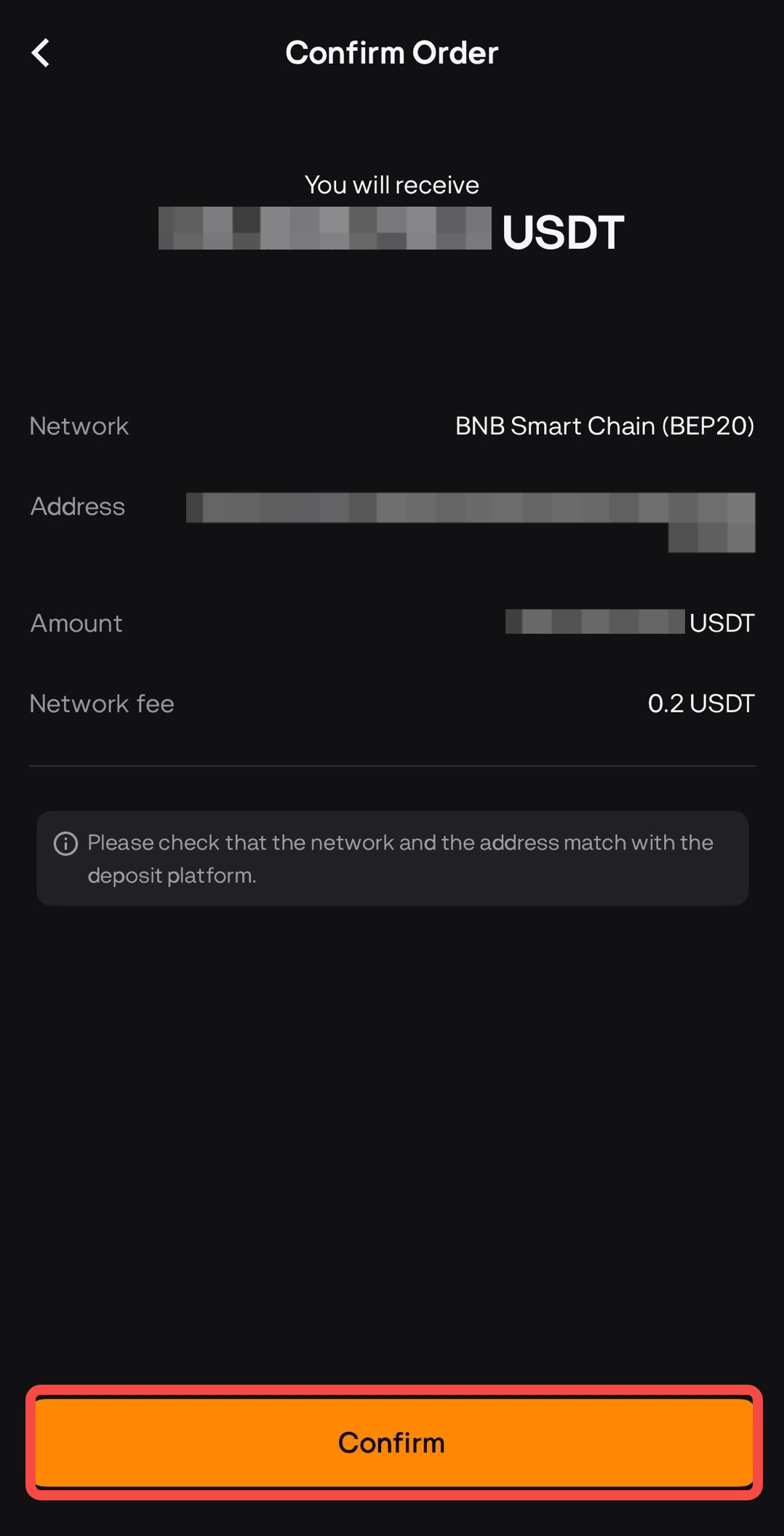
Tap [Withdraw] and confirm the details once again.
-
Complete the required security verification (email code, SMS, 2FA, etc.).
When SMS or email verification is required, click [Send] to trigger delivery.
Codes are valid for 5 minutes.
Please avoid clicking [Resend] immediately after the 60-second timer. We highly recommend waiting within the 5-minute validity period for the code to arrive.
If the code has still not arrived after 5 minutes, then click [Resend] to request a new one.
-
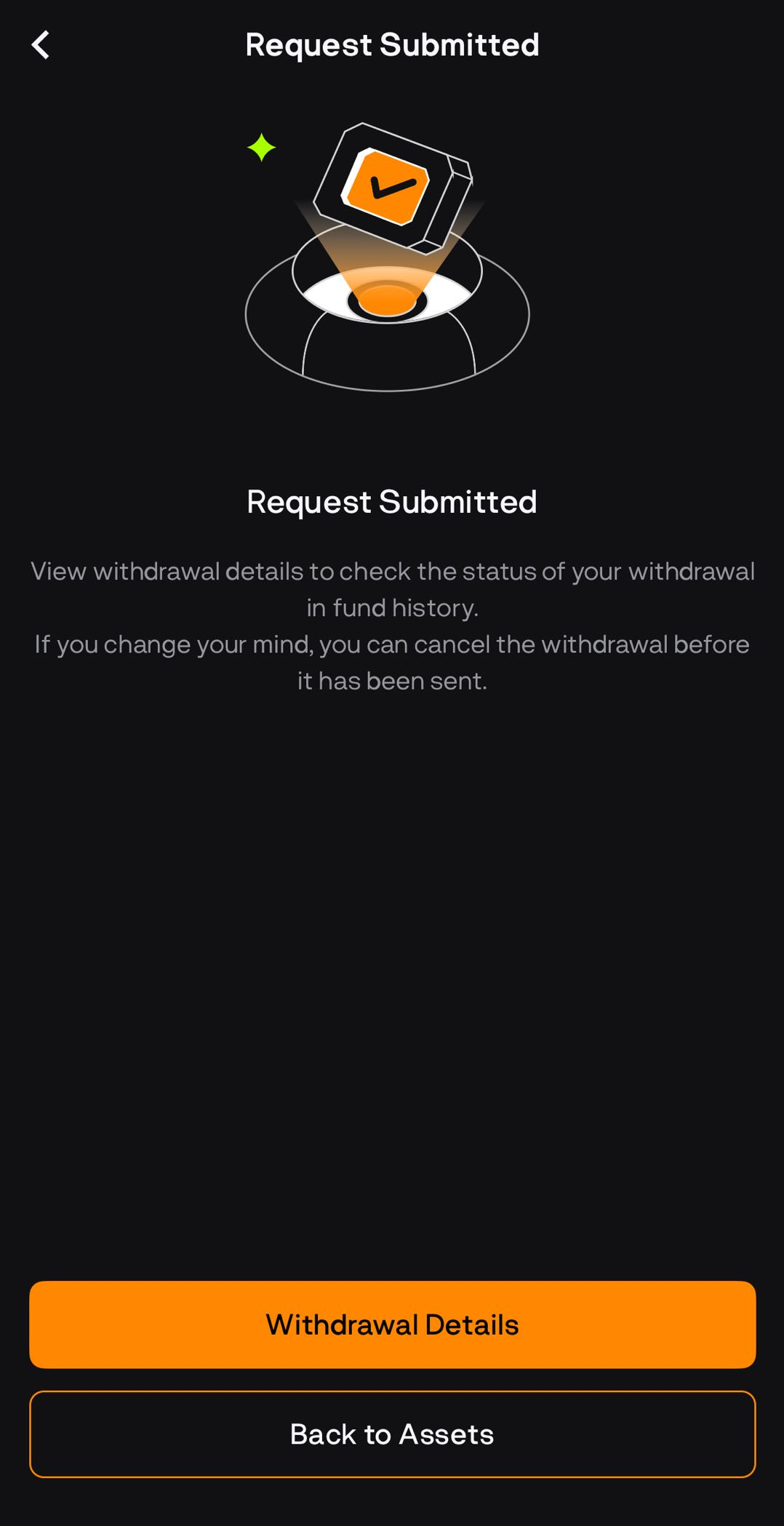
Once submitted, your withdrawal will be processed and credited to the destination wallet after blockchain confirmations are complete.
Important Reminders
Network matching is critical: Using the wrong network may cause permanent loss of funds.
Double-check wallet addresses: Always copy/paste from trusted sources. Sending to the wrong address is irreversible.
Memo/Tag: Some tokens require a memo/tag. If it’s missing or incorrect, your funds may not be credited.
Withdrawal limits: Your maximum daily/monthly withdrawal limit depends on your KYC verification level.
Minimum withdrawal amount: Each token/network has a minimum limit. Withdrawals below this amount will not be processed.
Network fees: Fees vary by asset and network, deducted from the withdrawal amount.
Security: Always enable 2FA and avoid sharing your codes with anyone. BloFin staff will never ask for them.
Processing time: Withdrawals are processed after passing security checks and blockchain confirmations. Timing depends on the chosen network.
For more information, please visit our Deposit & Withdrawal FAQ.