
How Do I Check My Deposit History?
April 21, 2026 at 10:54 PMYou can check your deposit history on Web or Blofin App via the History page.
How to Check Deposit History via Web
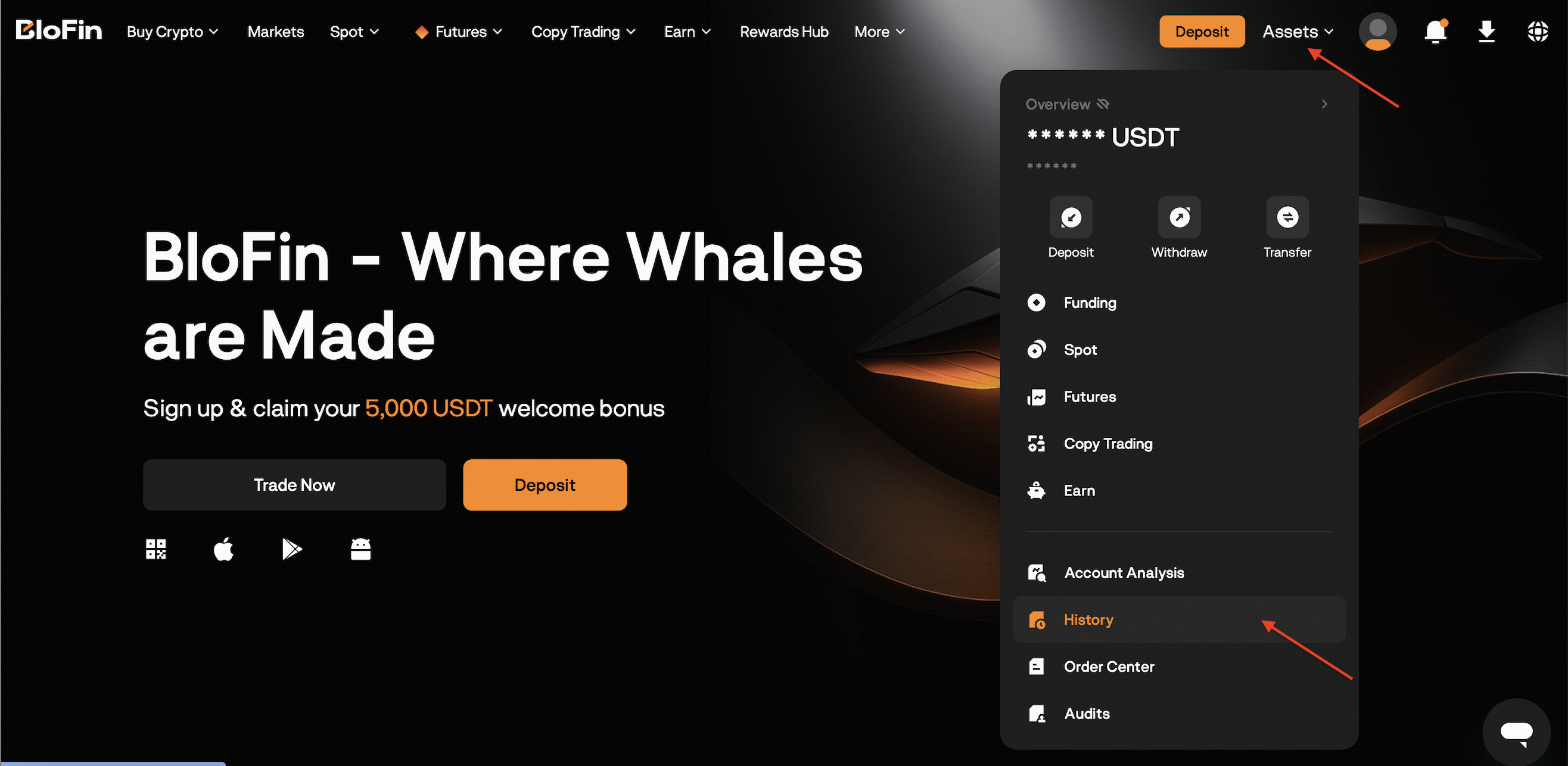
Log in and go to Assets → History
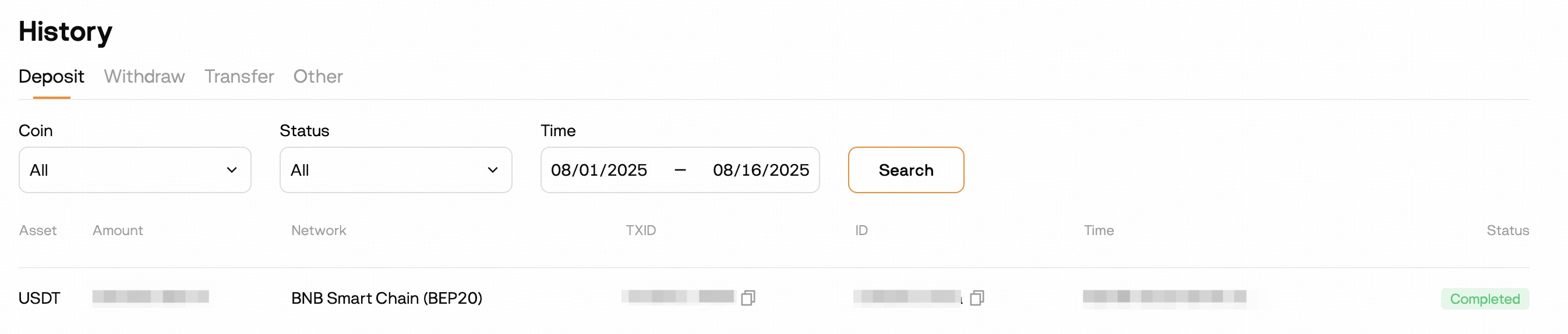
Use filters (asset / status / date) to quickly find the transaction.
In the list, you’ll see Amount, Status, Progress / Confirmations, and Time (last 30 days visible).
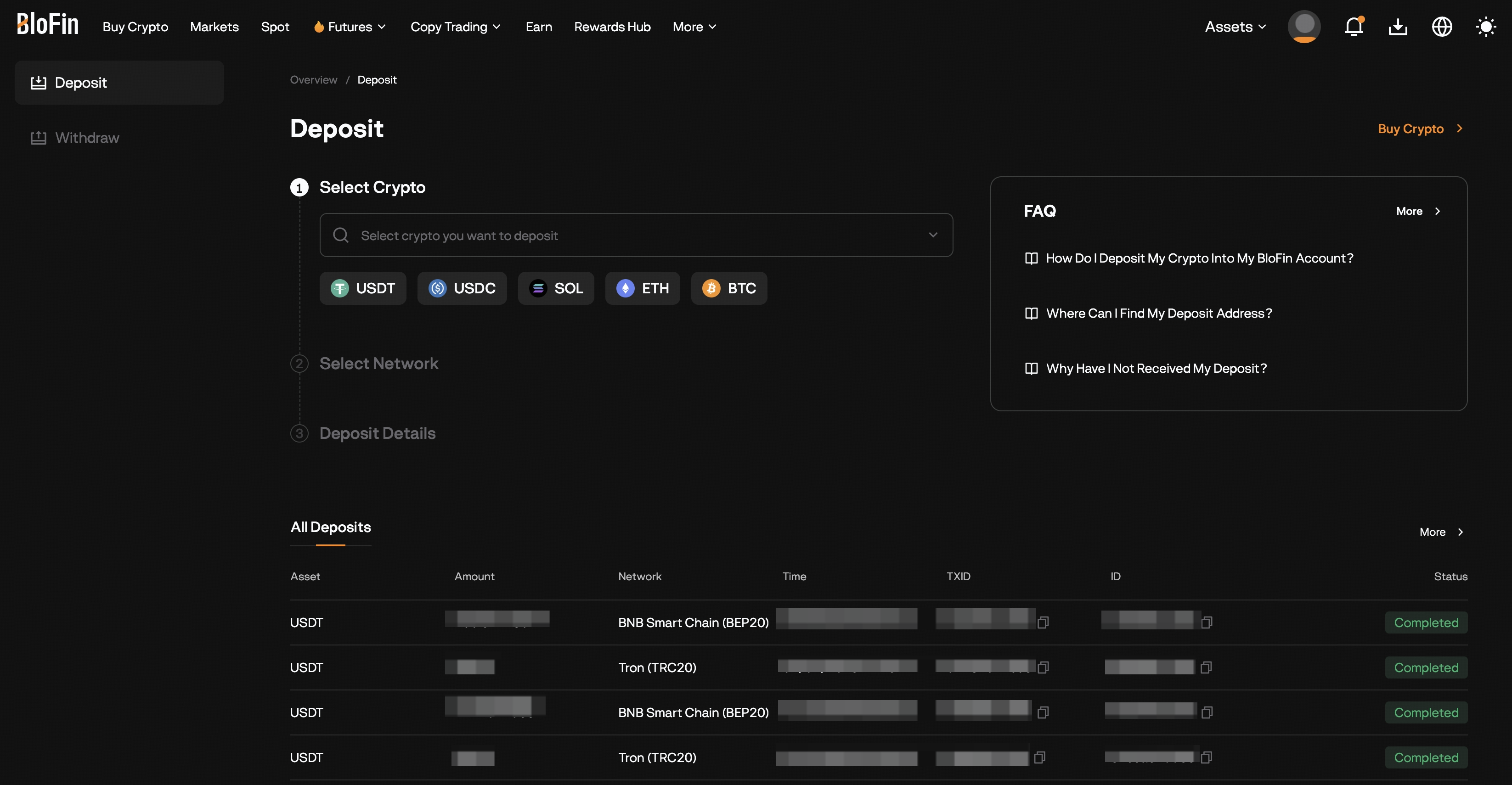
- Alternatively, you can also view your recent deposit records directly in the Deposit page under the All Deposits section.
How to Check Deposit History via Blofin App
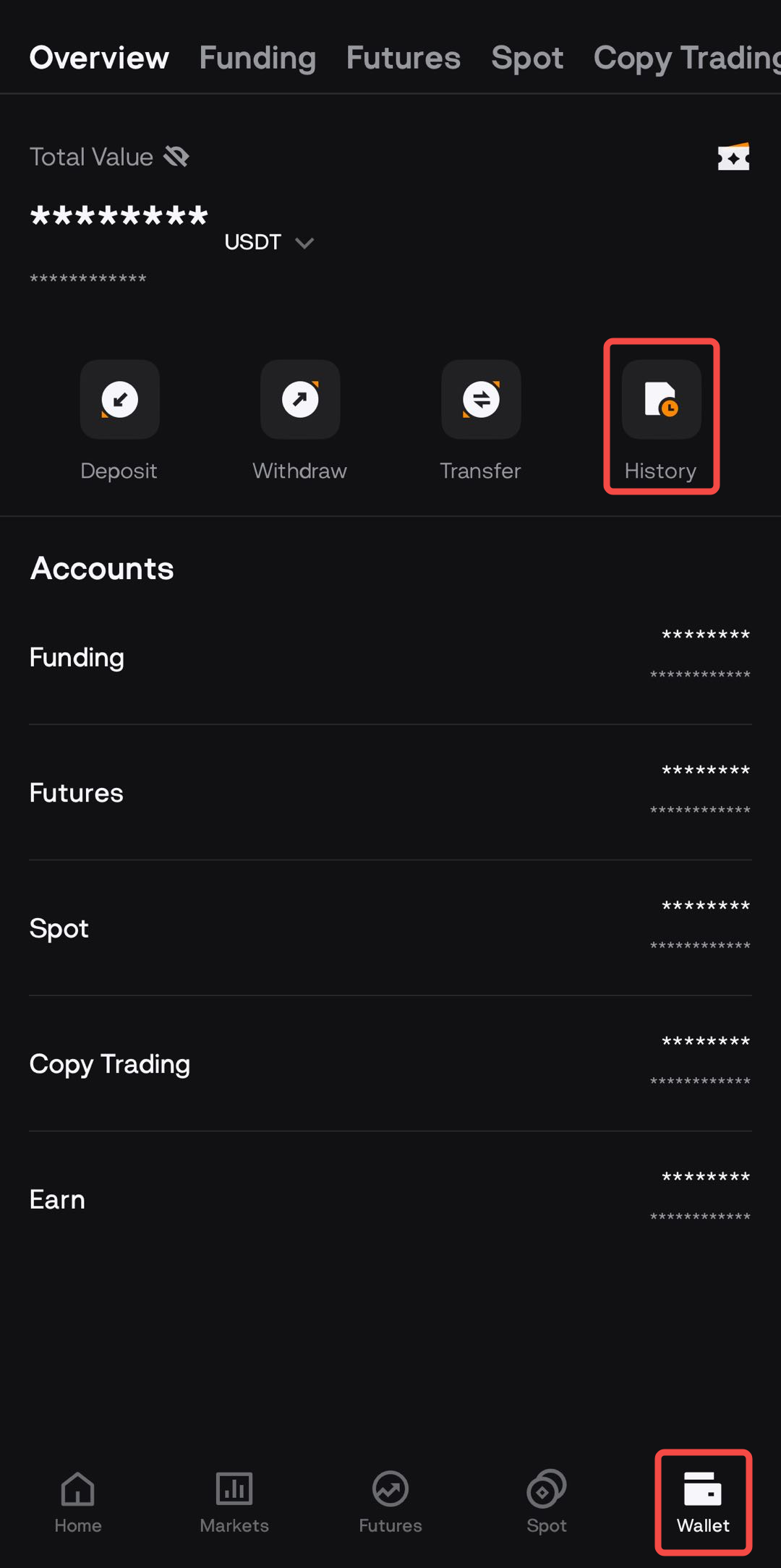
Open the BloFin app → Wallet → History → Deposit.
Choose the deposit you want to review (up to the last 90 days).
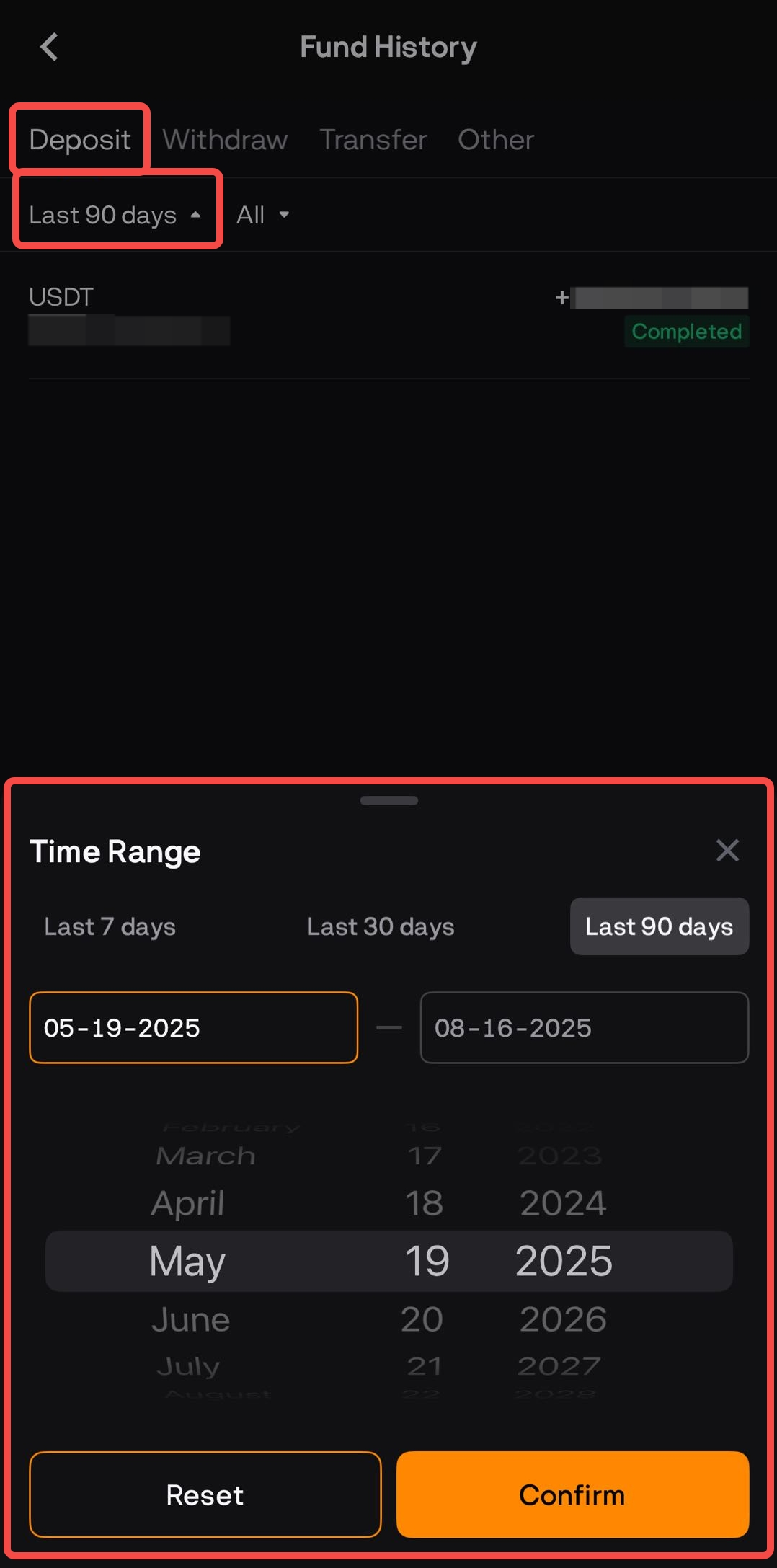
Tap the transaction to see Amount, Status, Confirmations / Progress, and Time.
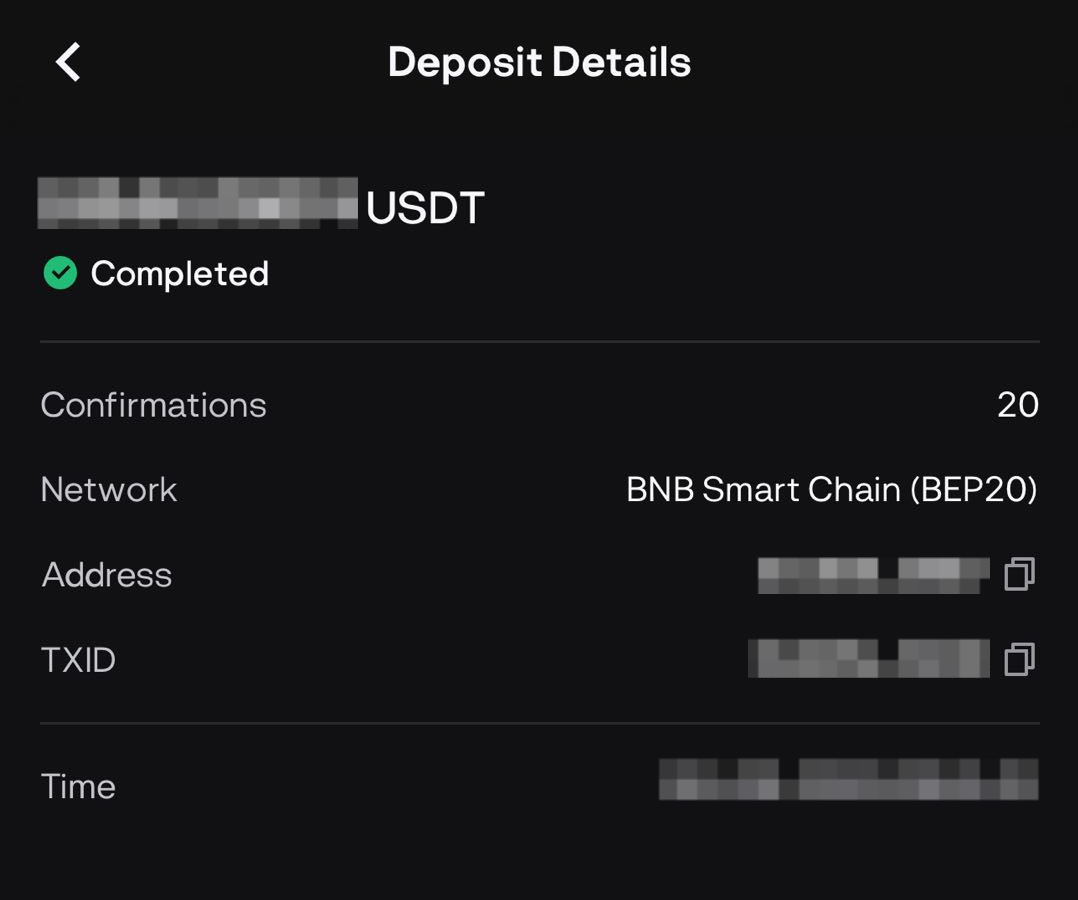
Quick Troubleshooting if Deposit Isn’t Showing
Confirmations – Some networks require more confirmations or may be congested. Give it time and check the explorer link.
Network Match – The network used to send must match the network shown on BloFin’s deposit page.
Memo/Tag Required? – Some assets (XRP, XLM, TON require a memo/tag. Missing or incorrect tags can prevent crediting.
Minimum Amount – Deposits below the minimum won’t be credited.
Correct Account – Deposits credit to your Funding Account first; transfer to Spot/Futures/Earn as needed.
Still not there? See Why Have I Not Received My Deposit? or Submit a request with TXID, token, network, amount, and time.