
How to Set Anti-Phishing Code?
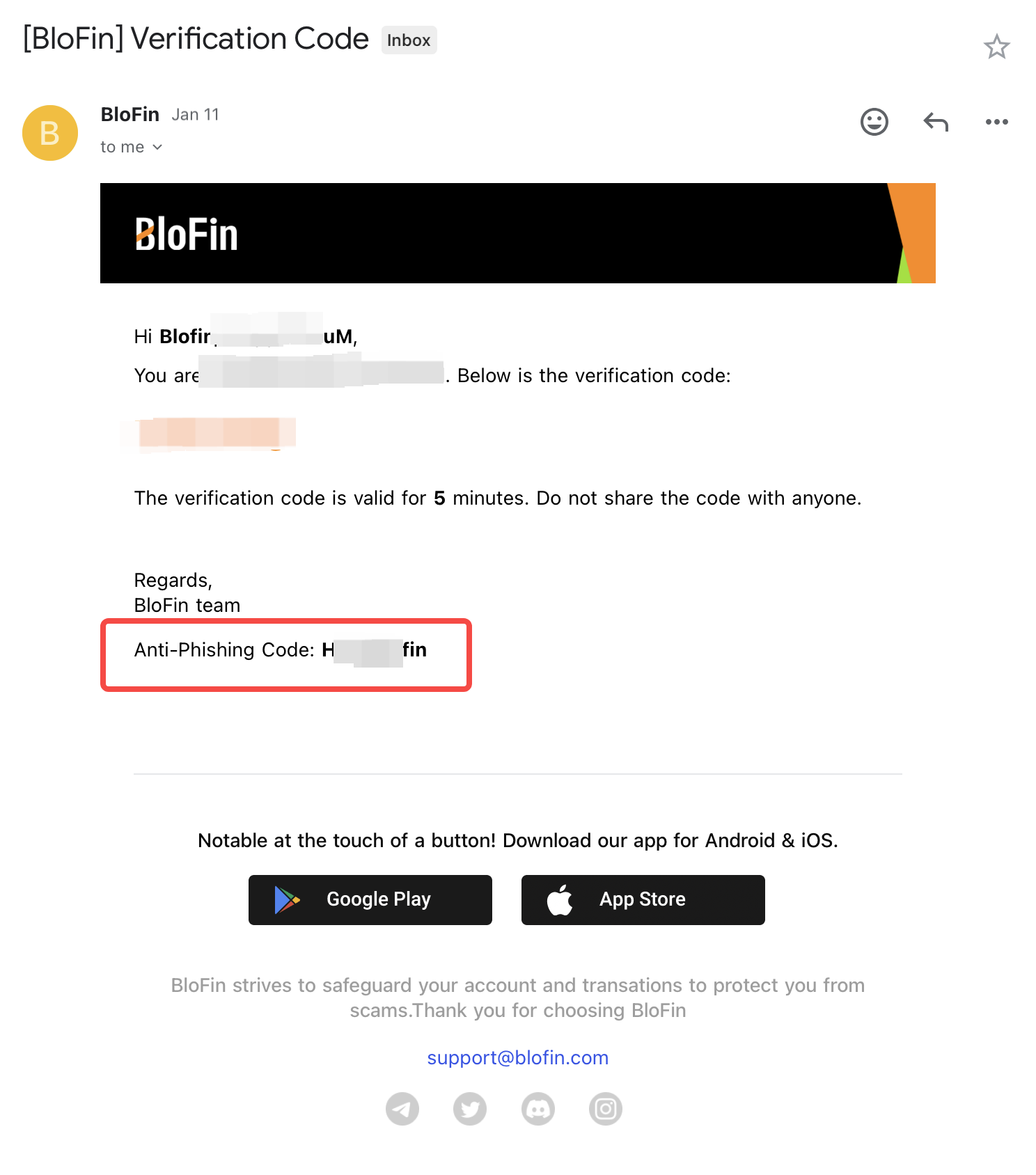
April 21, 2026 at 10:14 PMAfter you've successfully set up the anti-phishing code, it will appear in all official emails from BloFin to prevent phishing attempts and help protect your account.
A Step-by-Step Guide to Set on Web
1. Log in to your BloFin account and hover your mouse over profile icon > [Account & Security]. Go to the [Anti-Phishing Code] session and click [Set up]
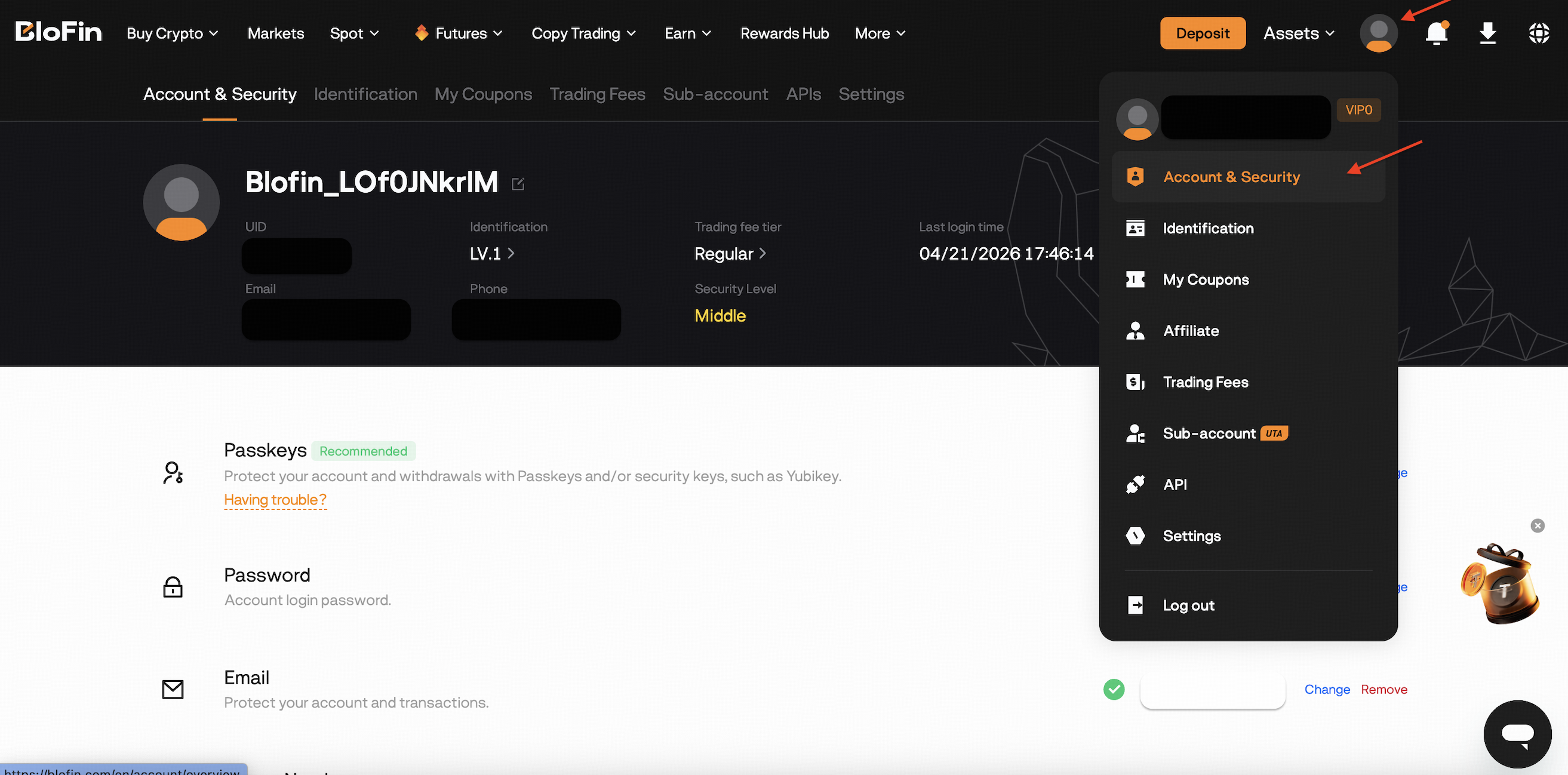

2. On the [Set up Anti-Phishing Code] page, enter your Anti-phishing code according to the requirement, then verify your email verification code/SMS code, and Google Authenticator codes. Click [Submit].
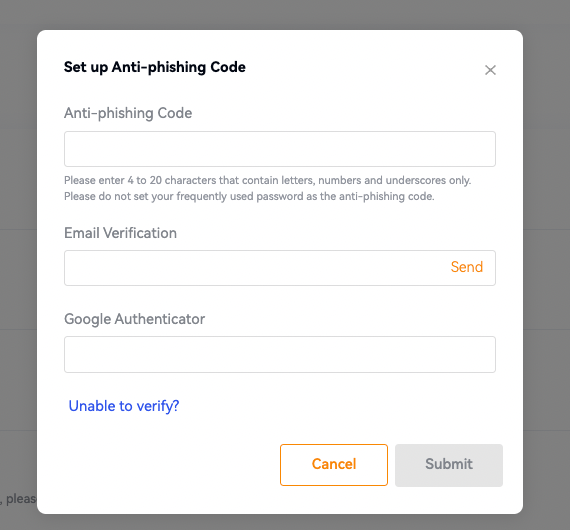
3. The Anti-Phishing code is set successfully. Then the Anti-Phishing code is present in all official emails from BloFin. Kindly verify its presence whenever you receive emails from BloFin.
A Step-by-Step Guide to Set on App
1. Open BloFin app and log in to your BloFin account, tap [User Avatar], select [Account & Security].
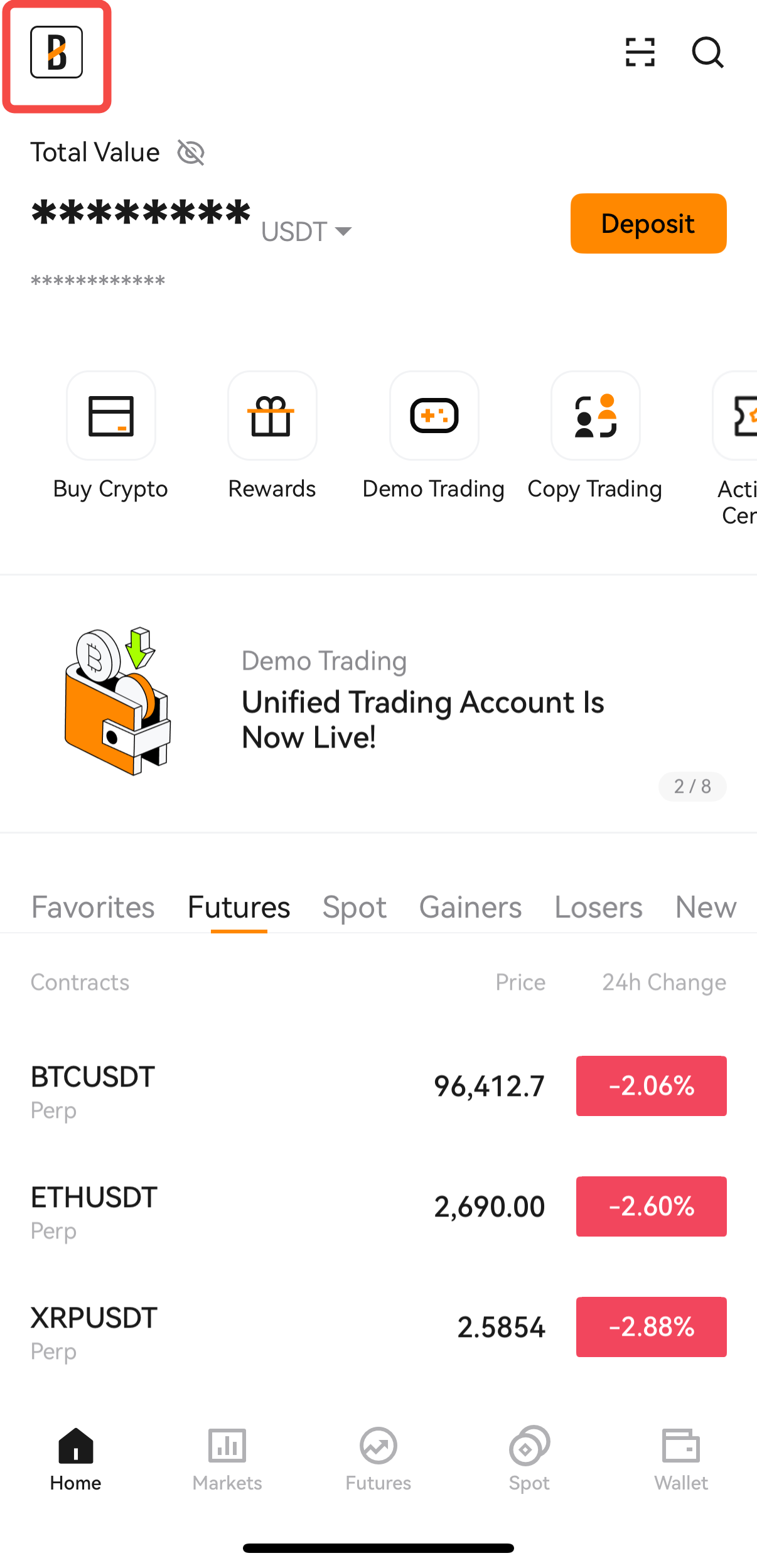
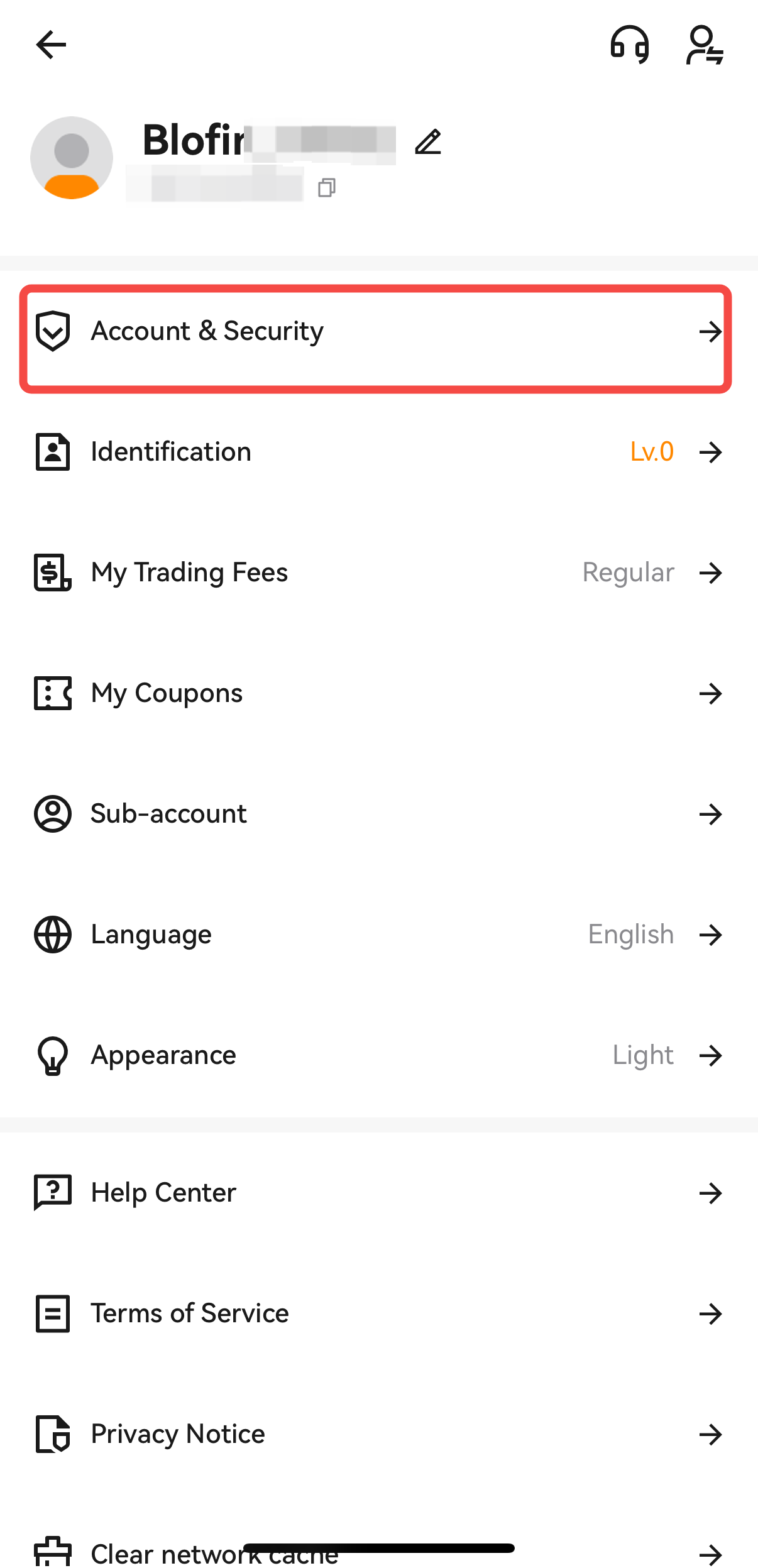
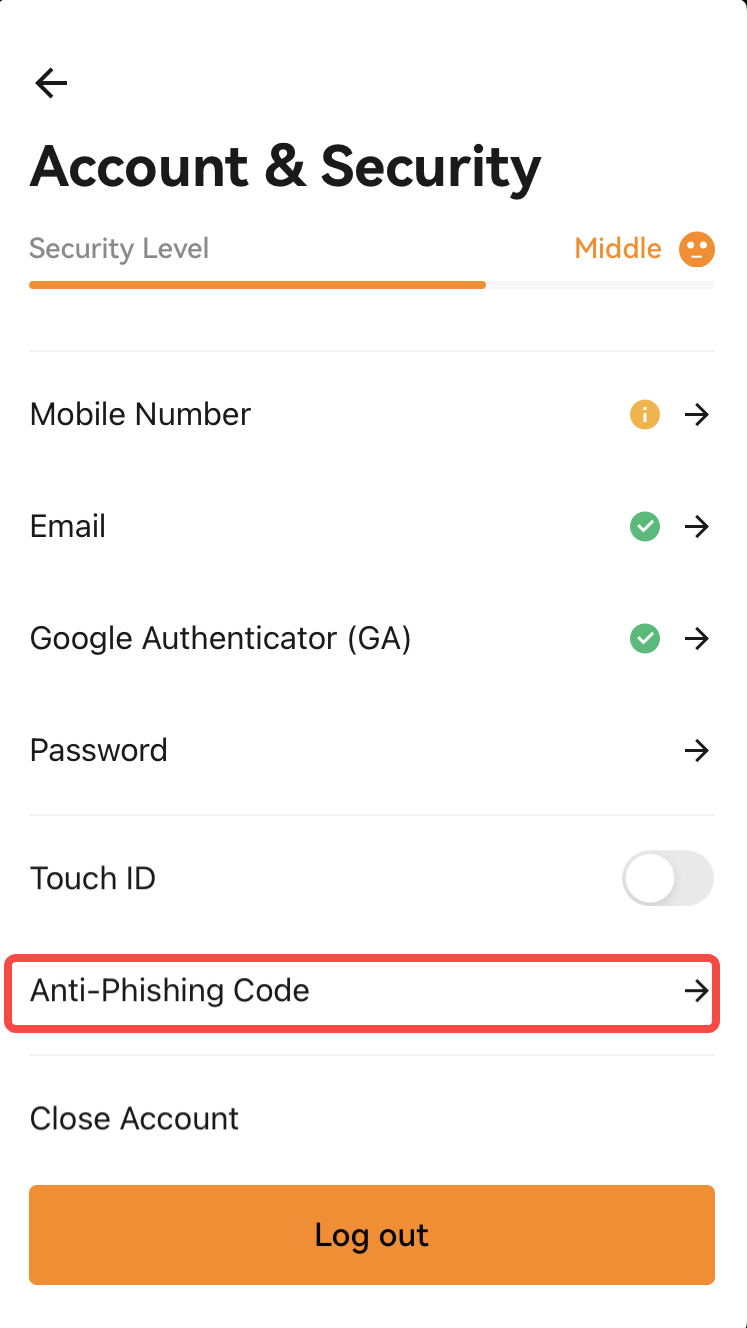
2. Go to the [Anti-Phishing Code] session and click the arrow [→] to next.
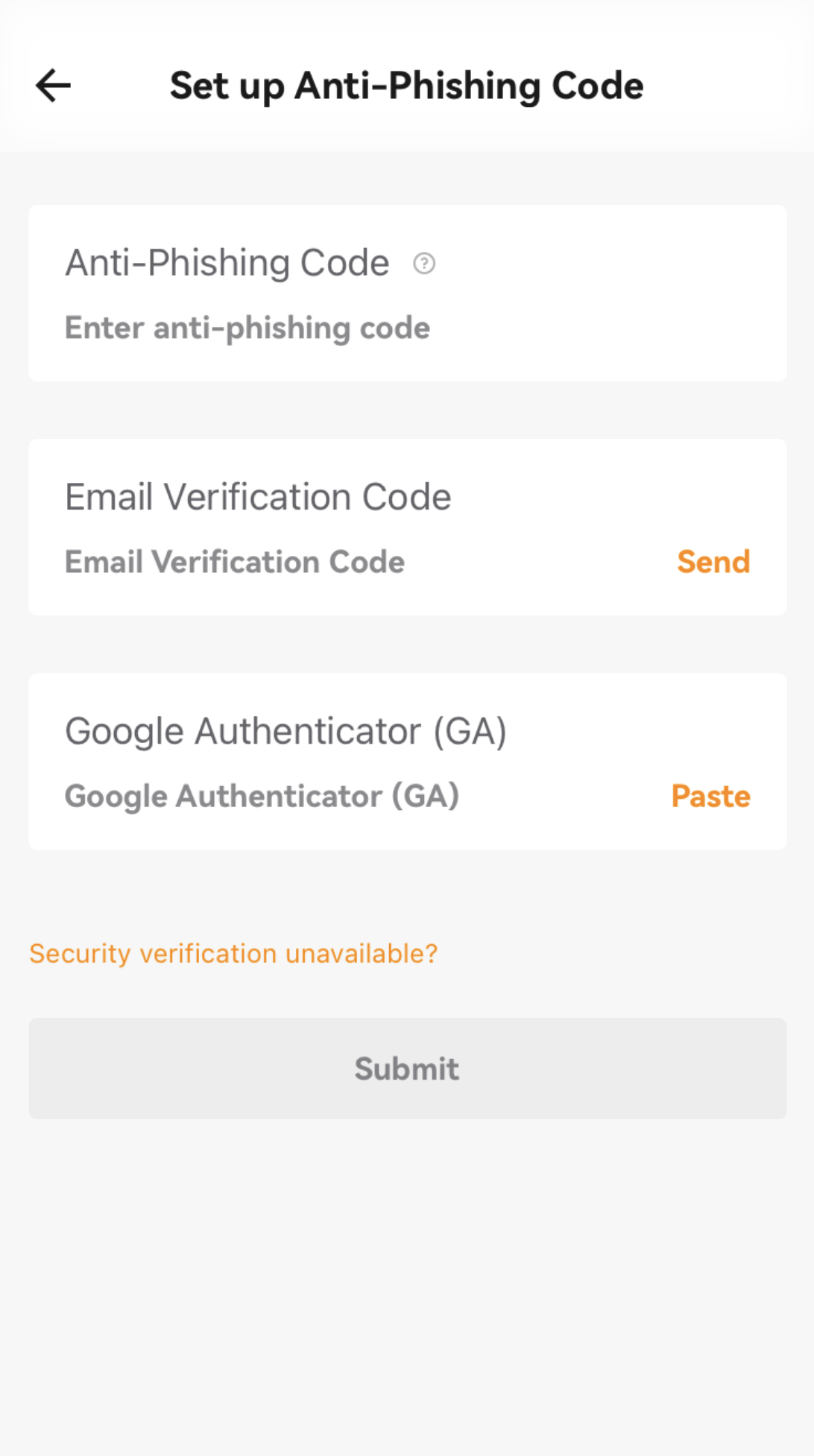
3. On the [Set up Anti-Phishing Code] page, enter your anti-phishing code and verify your email verification code/SMS code, and Google Authenticator code. , then click on [Submit]. The Anti-Phishing code is set successfully.
4. After setting it, the Anti-Phishing code is present in all official emails from BloFin. Kindly verify its presence whenever you receive emails from BloFin.
Was this article helpful?