Trader: Copy Trading User Center
February 6, 2026 at 04:05 PMApply to Become a Lead Trader
Process: First of all, if you want to become a trader, please click to submit your application here: Become a Lead Trader. We will review your application and get back to you once we receive it. In the meantime, you may think about a nickname and a matching avatar for your Trader profile as you won’t be able to change your name and avatar once they’re set.
View Your Copy Trading Profile Page
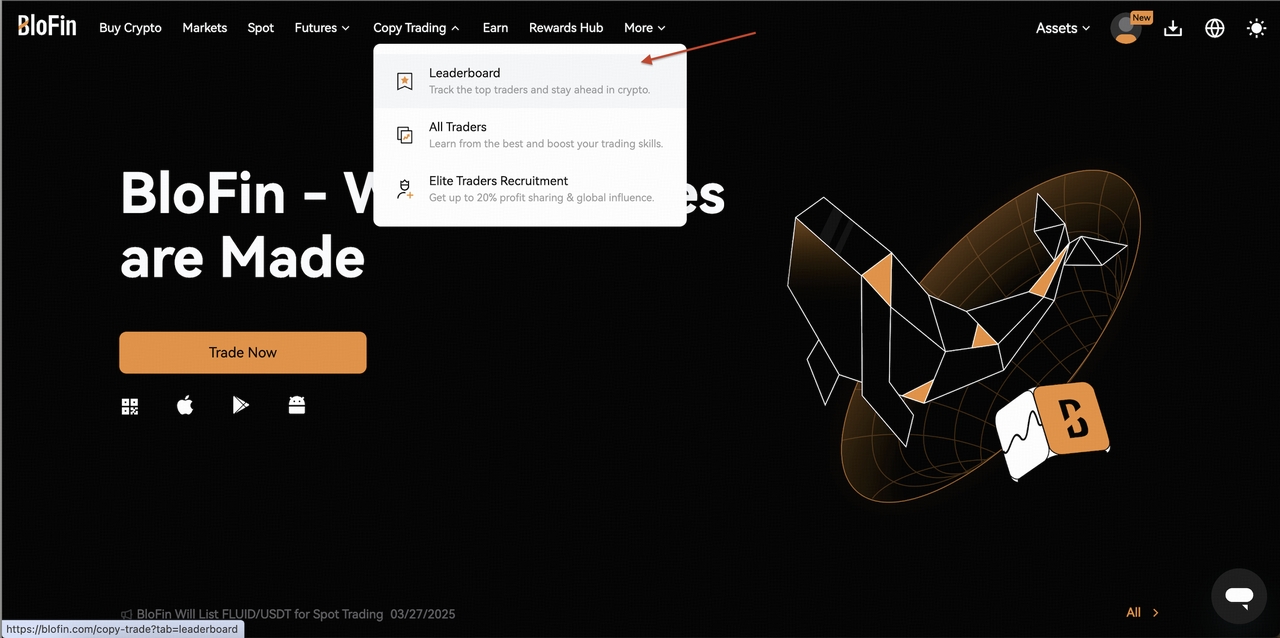
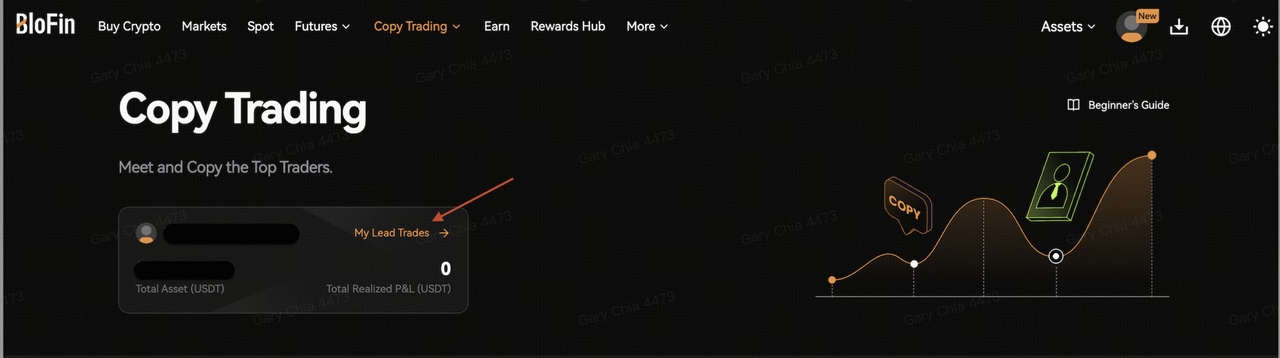
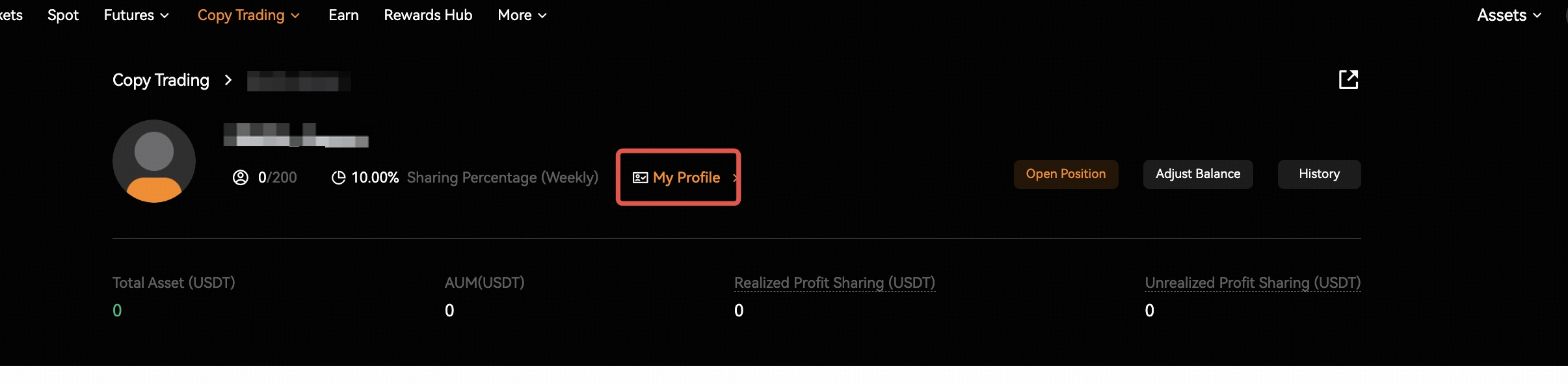
From the Copy Trading User Center (Lead Trader), you can get an overview of your Copy Trading Account, including an account overview, past performances, followers’ performances, and your order details. Go to the copy trading section, click on [LeaderBoard] and [My Lead Trade] to access your profile page.
Account Overview
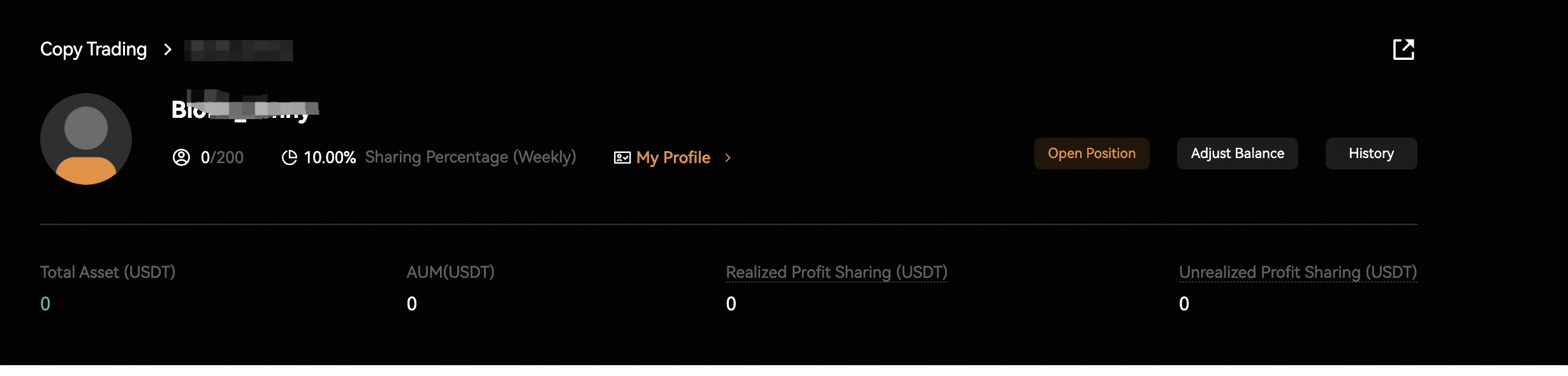
Copiers: The maximum number of followers allowed is 200.
Total assets: Trader's assets in copy trading account.
AUM: Total copy assets of copiers.
Realized Profit Sharing (USDT): Total profit that you've got from sharing.
Unrealized Profit Sharing: This reflects the unrealized profit share yet to be settled. However, this amount does not represent your actual profit share to be settled on the upcoming settlement day. The final profit share will be calculated and settled based on the actual net profits generated for your followers during the settlement period.
Settlement: Unrealized profit sharing will be distributed to Lead Traders' copy trading accounts automatically at 3:00 A.M. (UTC) every Monday.
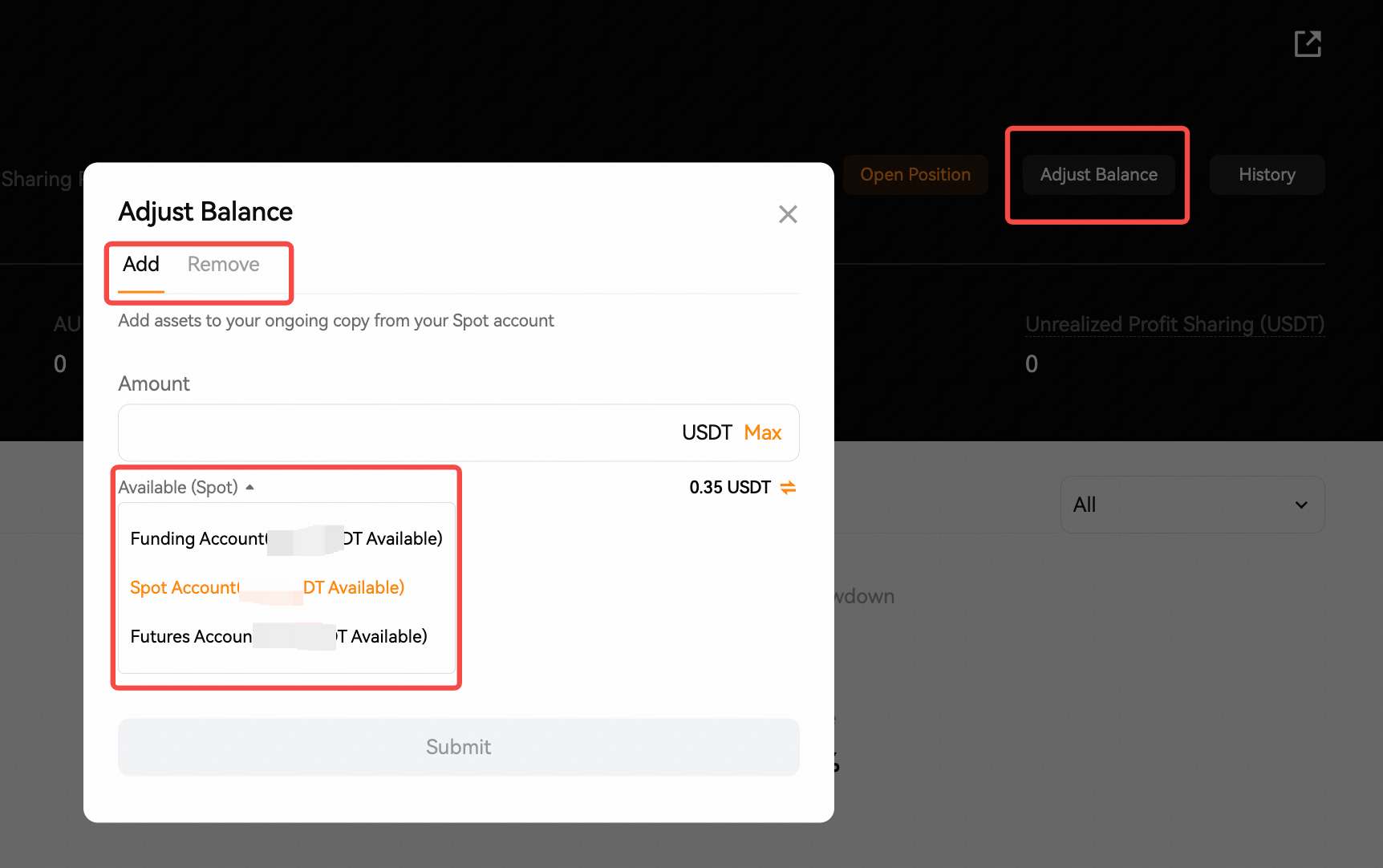
Adjust Balance in Copy Trading Account:
Add balance: it allows you to add assets to your ongoing copy from Futures account, funding account or spot account at any time you want.
Remove balance: Remove assets from the Copy Trading account, and the removed assets will go back to your Funding Account.
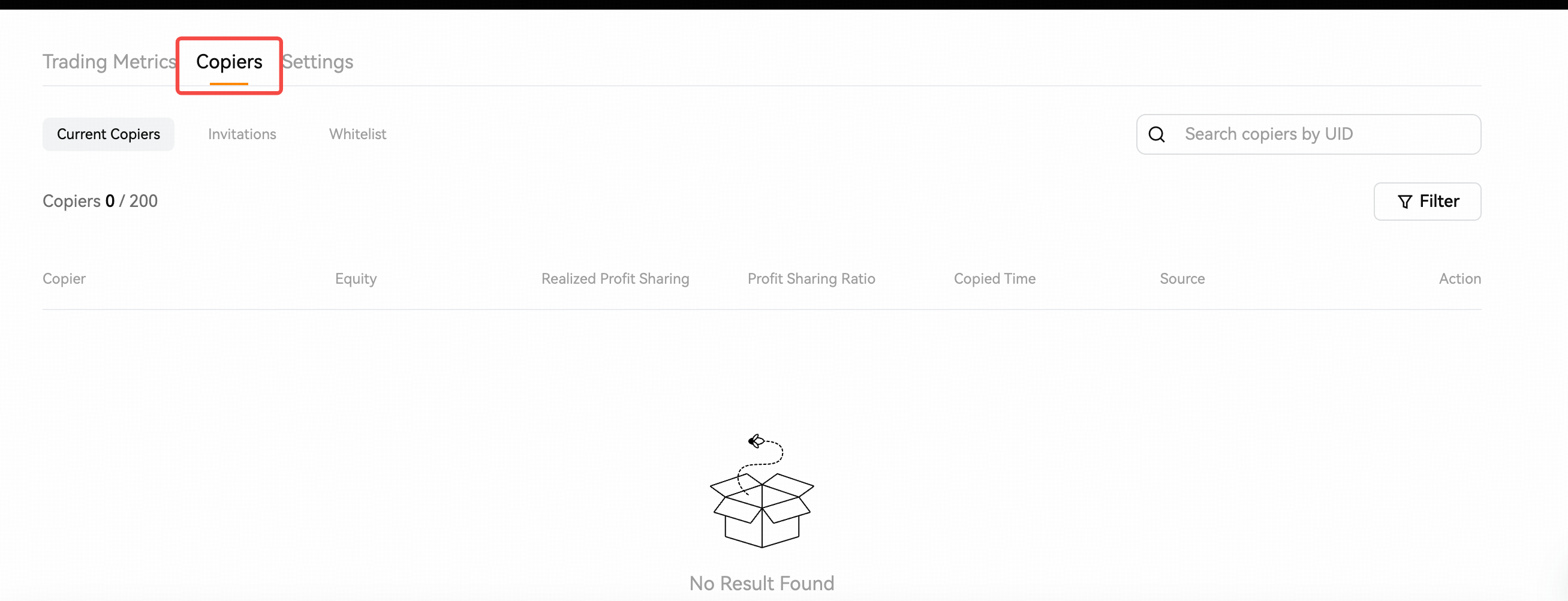
Current Copiers: Find out more about those who follow you on this page. You have access to key performance metrics including Equity, Realized Profit Sharing, Profit Sharing Ratio, copied time, and others of your current followers.
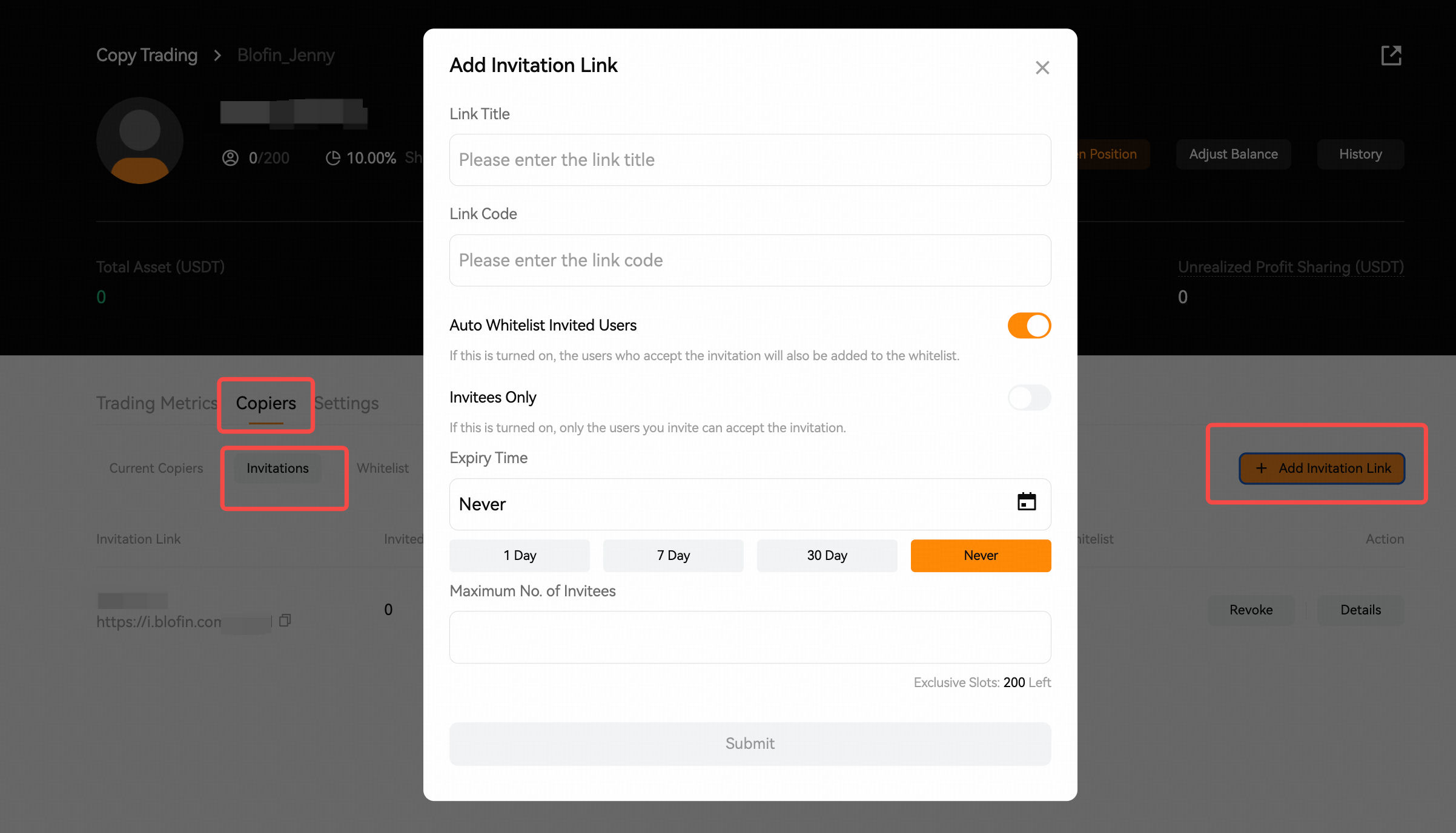
Invitations: You can create a customized invitation link for each of your copy trades and review the performance of each invitation link in this section.
Whitelist: You can add multiple users to whitelist
View Positions
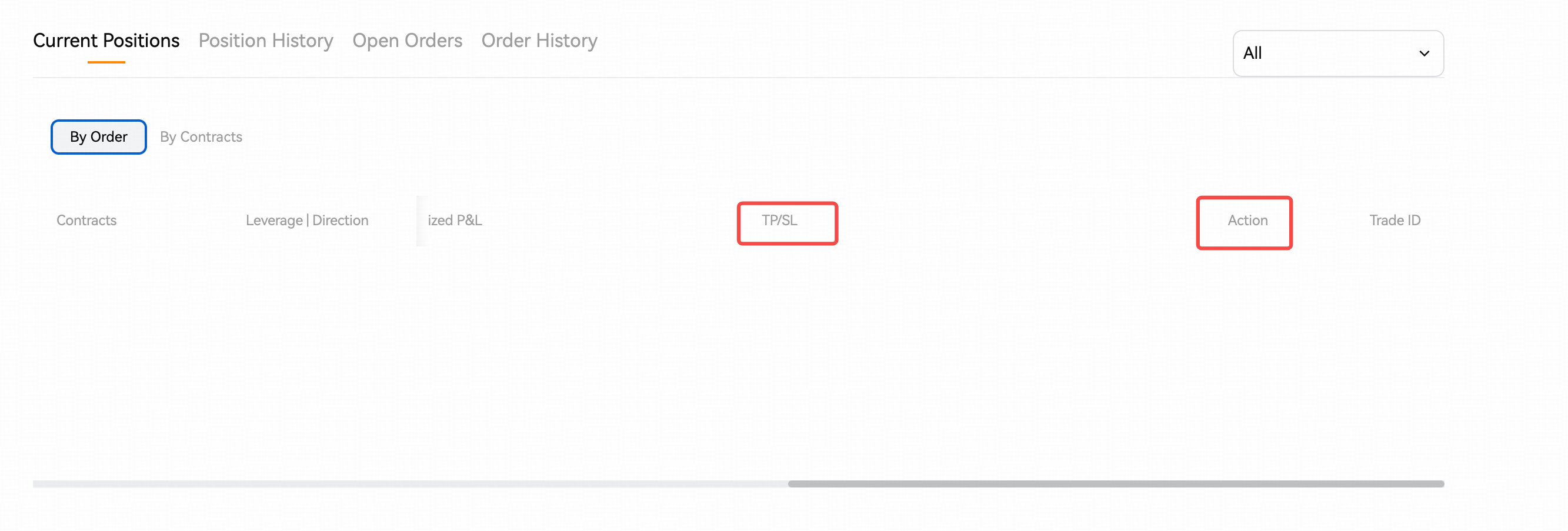
Current Positions: You can view current positions either by order or by contract. When viewing by order, each record is listed individually based on the order details, such as entry price, opening time, PnL, closing time, and other specifics for each order of the same trading pair. On the other hand, viewing by contract merges multiple orders of the same trading pair into a single position. In this mode, the entry price, closing price, and PnL are calculated based on the entire position, rather than individual orders.
Modify TP/SL and Close Positions manually: In this section, you can adjust Take Profit (TP) and Stop Loss (SL) orders by clicking [Modify] or manually close positions by clicking [Action].
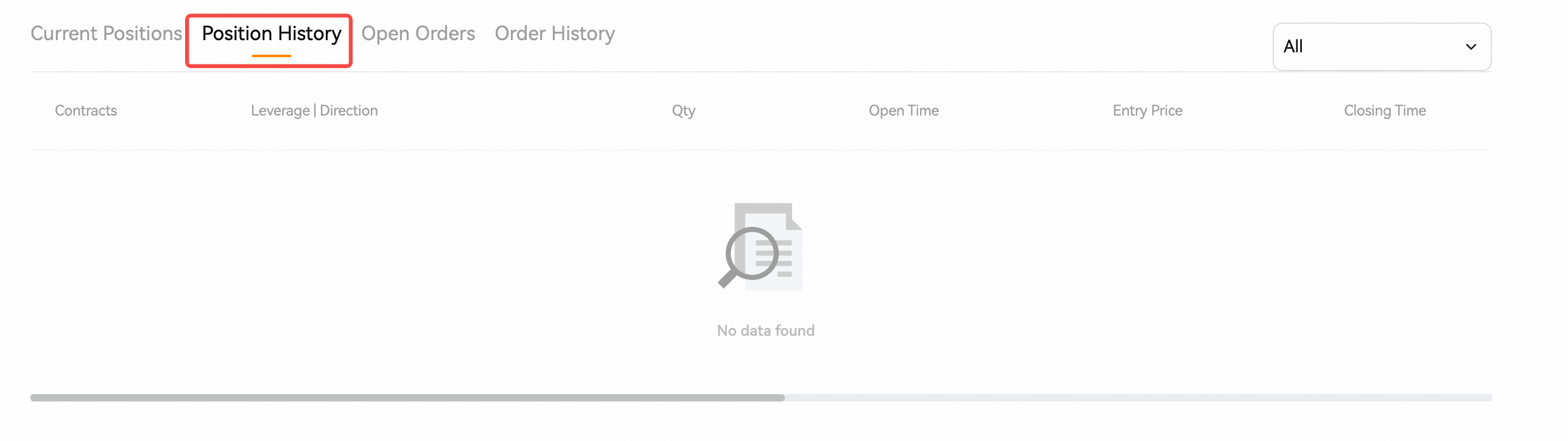
Position History: the performance details of each copy trades, which is listed by contract, including Qty, Open Time, Entry Price, Closing Time, Closing Price, P&L(ROE%), Closing Type, Sharing, Copiers, and more.
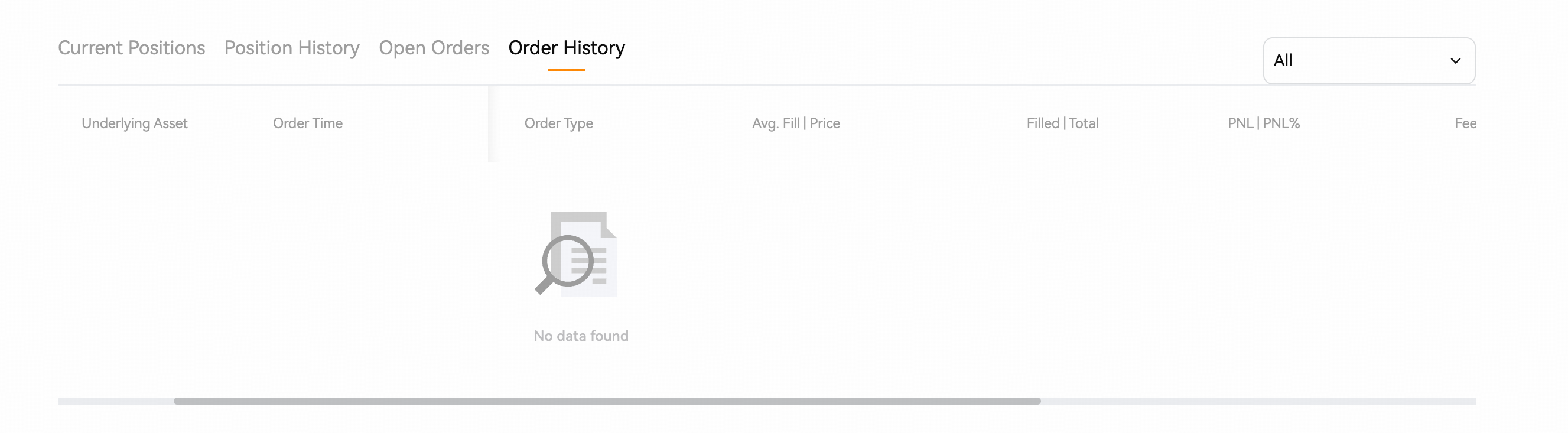
Order History: the performance details of each order in copy trading, which is listed by order.
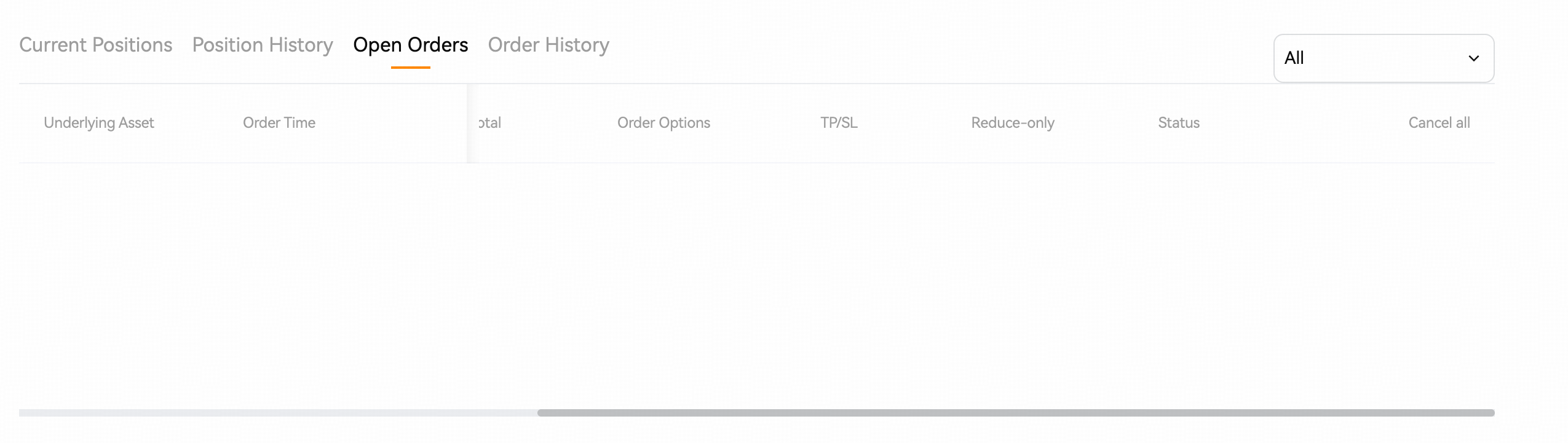
Open Orders: you can manage and view all open orders in your copy trading.
Private Settings in Copy Trading
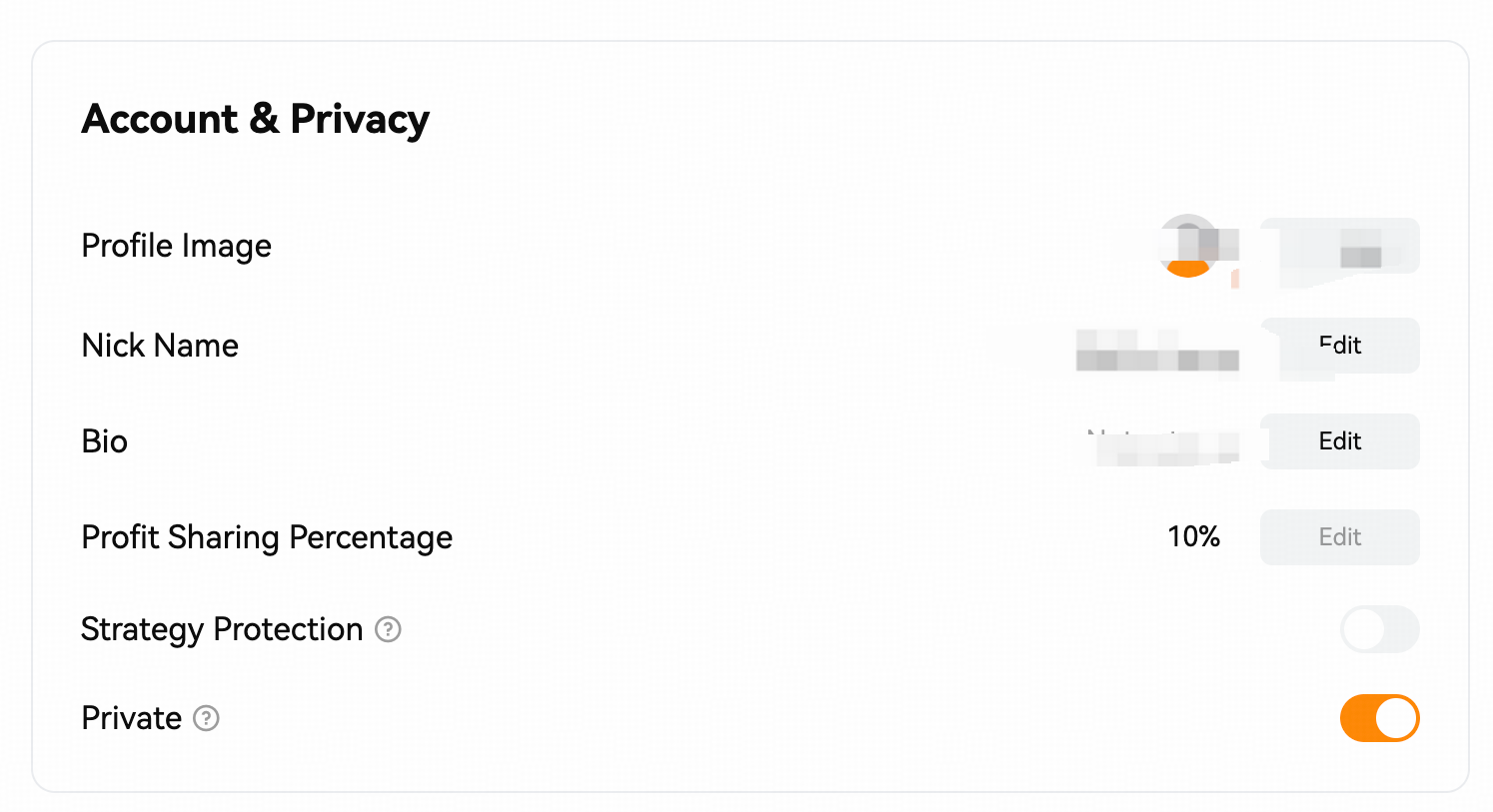
Account & Privacy:
Profile Image
Nick Name
Bio: enter your bio within 250 characters.
Profit Sharing Percentage: 10%, which is the default setting.
Private: After enabling Private mode, your information will remain confidential. Copiers will only be permitted to replicate your operations through an exclusive URL.
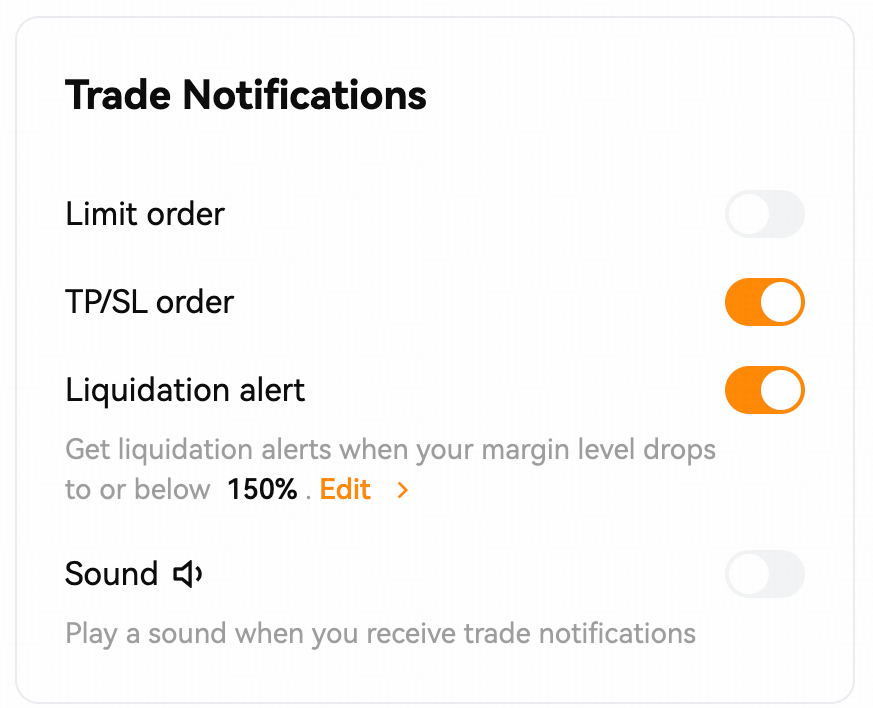
Trade Notifications:
The notifications include: Limit order, TP/SL order, liquidation alert and sound settings. After completing the notification settings, you will receive them on BloFin app and BloFin official website.
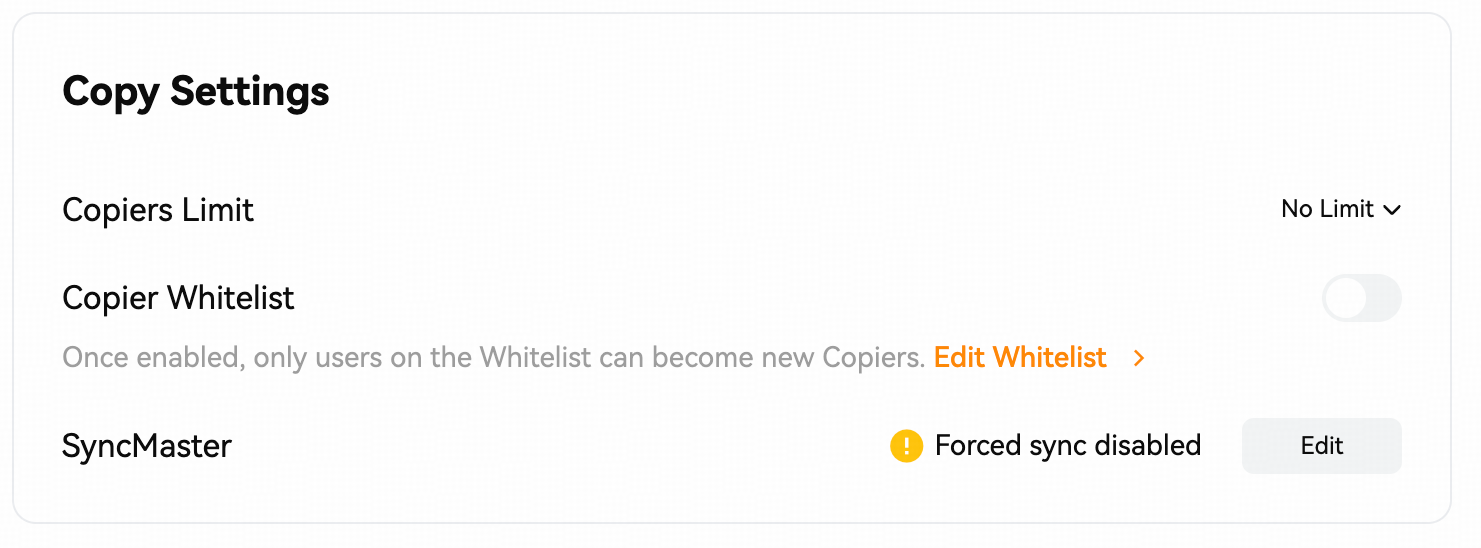
Copy Settings:
You can set the Copiers Limit, Copier Whitelist and SyncMaster-Forced sync functions.
Share your copy trading link
There are two ways to sharing your copy trading link with your copiers.
Please go to Copy Trading -> My Lead Trades -> Click on [My Profile]
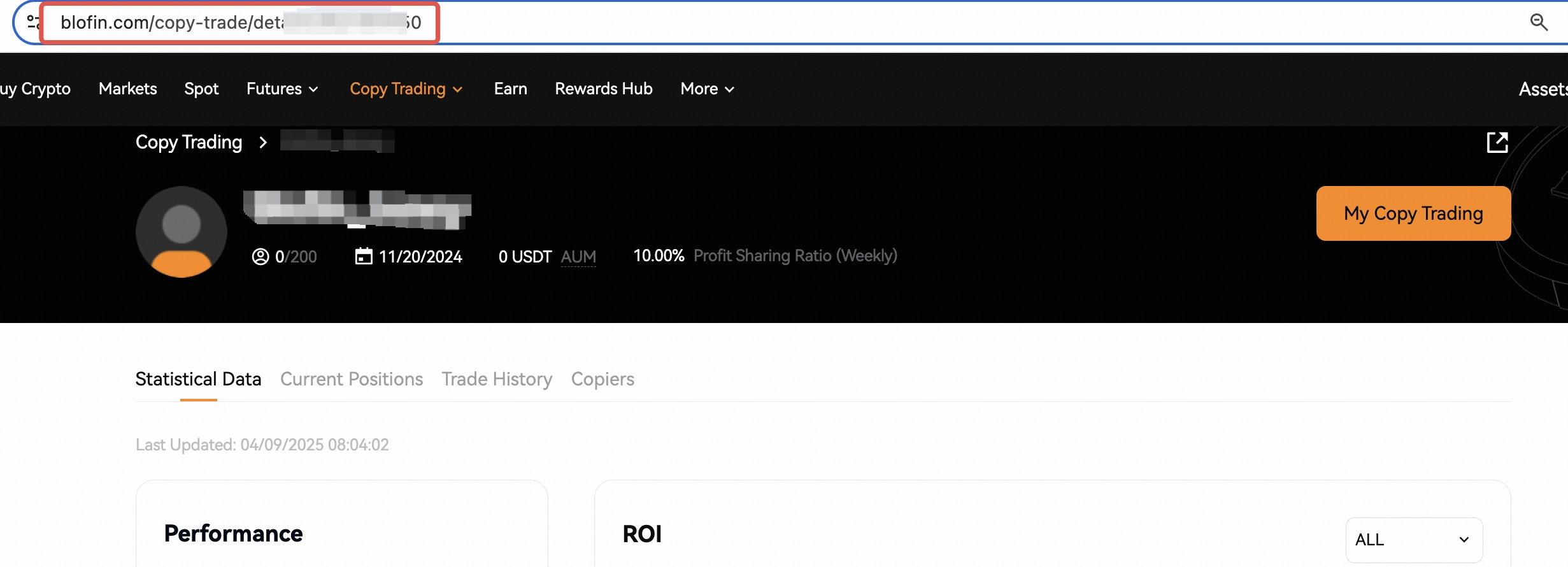
Directly share this profile page link with your users, or click the [Sharing icon] in the top right corner to share pictures.

Create your customized invitation link in Copy Trading
Under Copiers -> Invitations section, you can customize special invitation links for your copy trading. Click on [Add Invitation Link] to enter the link creation page, set the link title, link code, expiry time and maximum number of invitees.
Important notes:
1. Auto Whitelist Invited Users: Enabling this automatically adds users who accept the invitation to the whitelist.
2. Invitees only: Enabling this ensures that only users you invite can accept the invitation.