Affiliate and Referral Link Management on BloFin
March 13, 2025 at 01:36 PM1. Create customized referral links
With BloFin, you can easily create customized referral links and codes. Follow these steps to personalize your referral links:
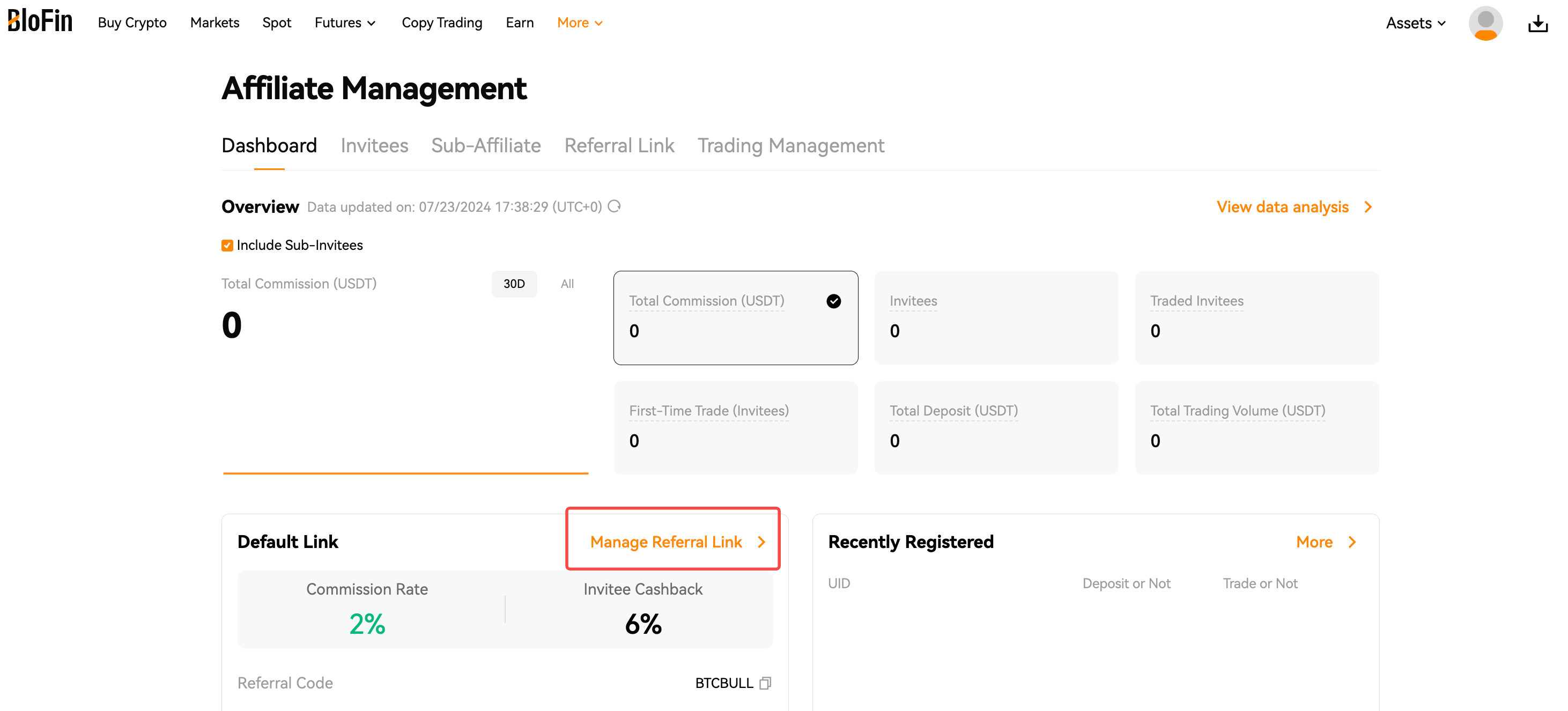
Step 1: Visit the Affiliate Management page, click on [Manage Referral Link] to access the [Referral Links] page.
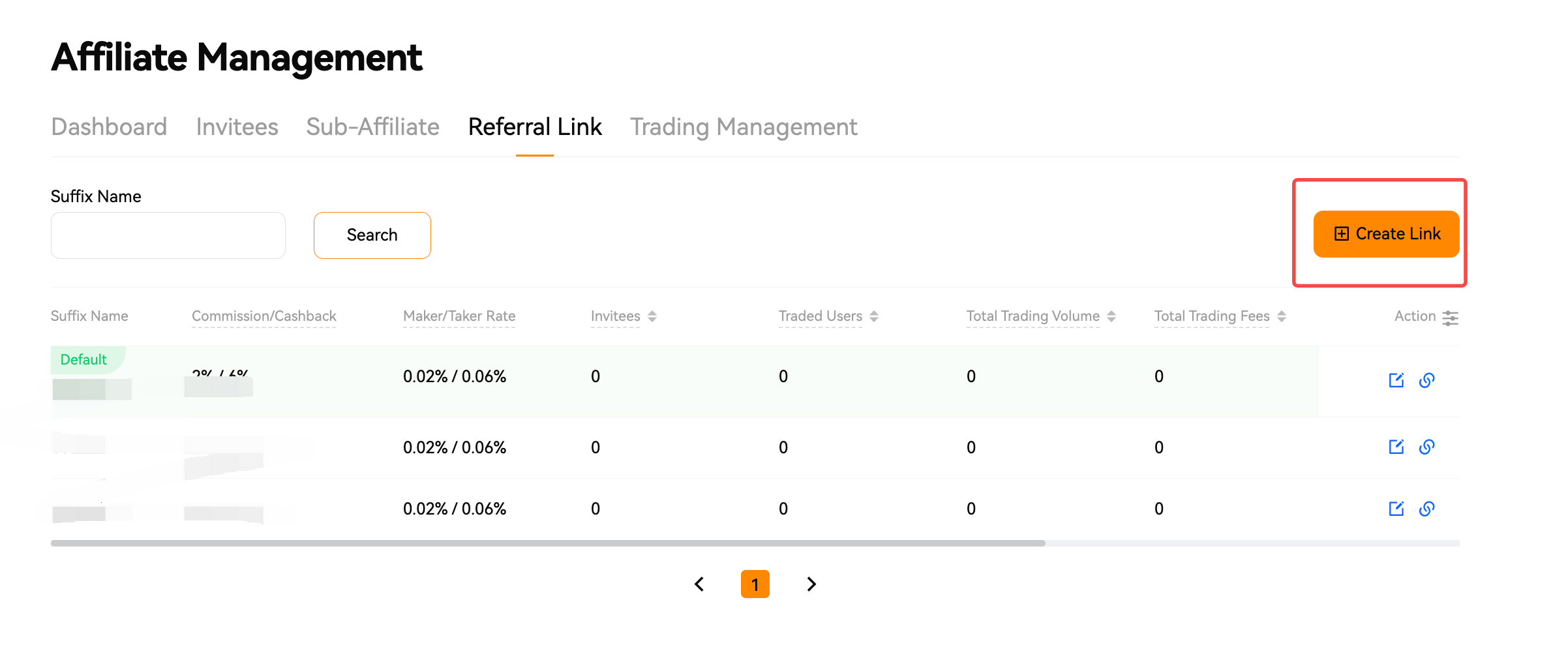
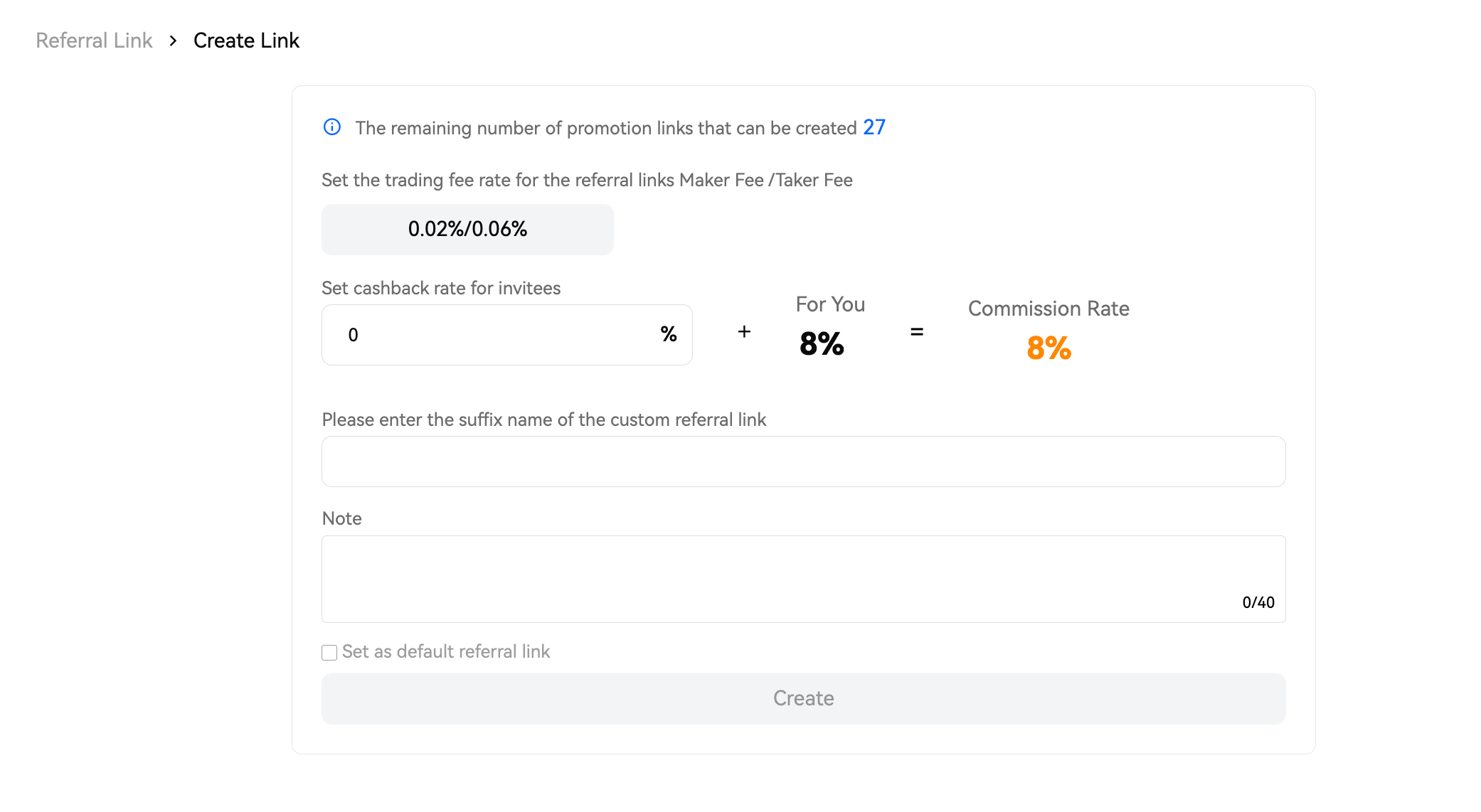
Step 2: Click on [Create Link] to access the Create Customized Referral Links interface. you can set the maker/taker fee rate and the cashback rebate for your invitees. Additionally, you have the option to add a unique suffix name to your referral link.
Notes:
1. The maximum limit of referral links you can create is 30.
2. Support setting different maker/taker fee rates for different referral links.
3. Support setting cashback rates of each link for invitees. The rate can not exceed the affiliate's referral rate.
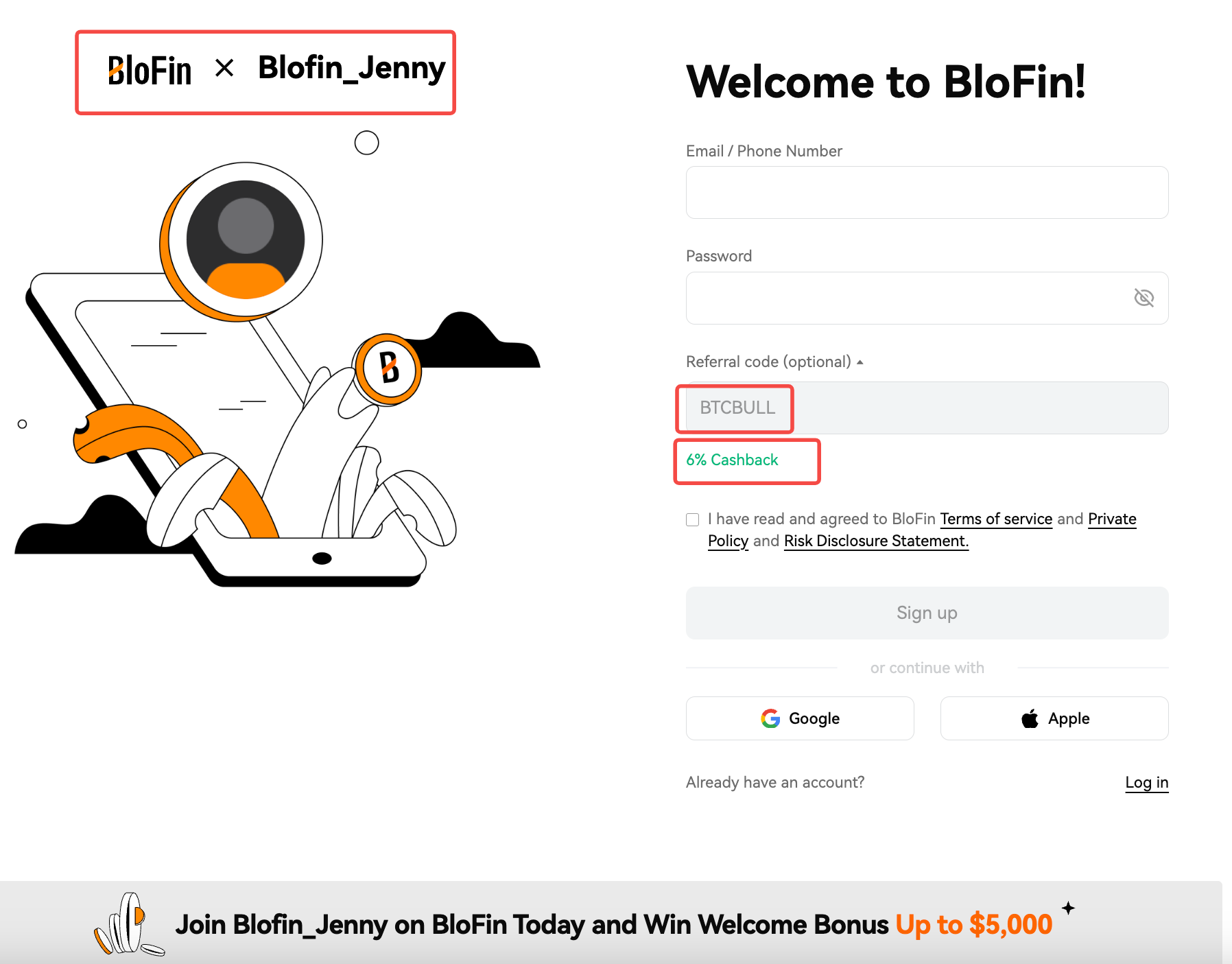
4. Support affiliates customize an exclusive referral registration page as below.
5. The cashback offer for invitees will be issued to their funding accounts hourly based on the commission settlement schedule.
2. Manage your affiliates
Invite a new sub-affiliate
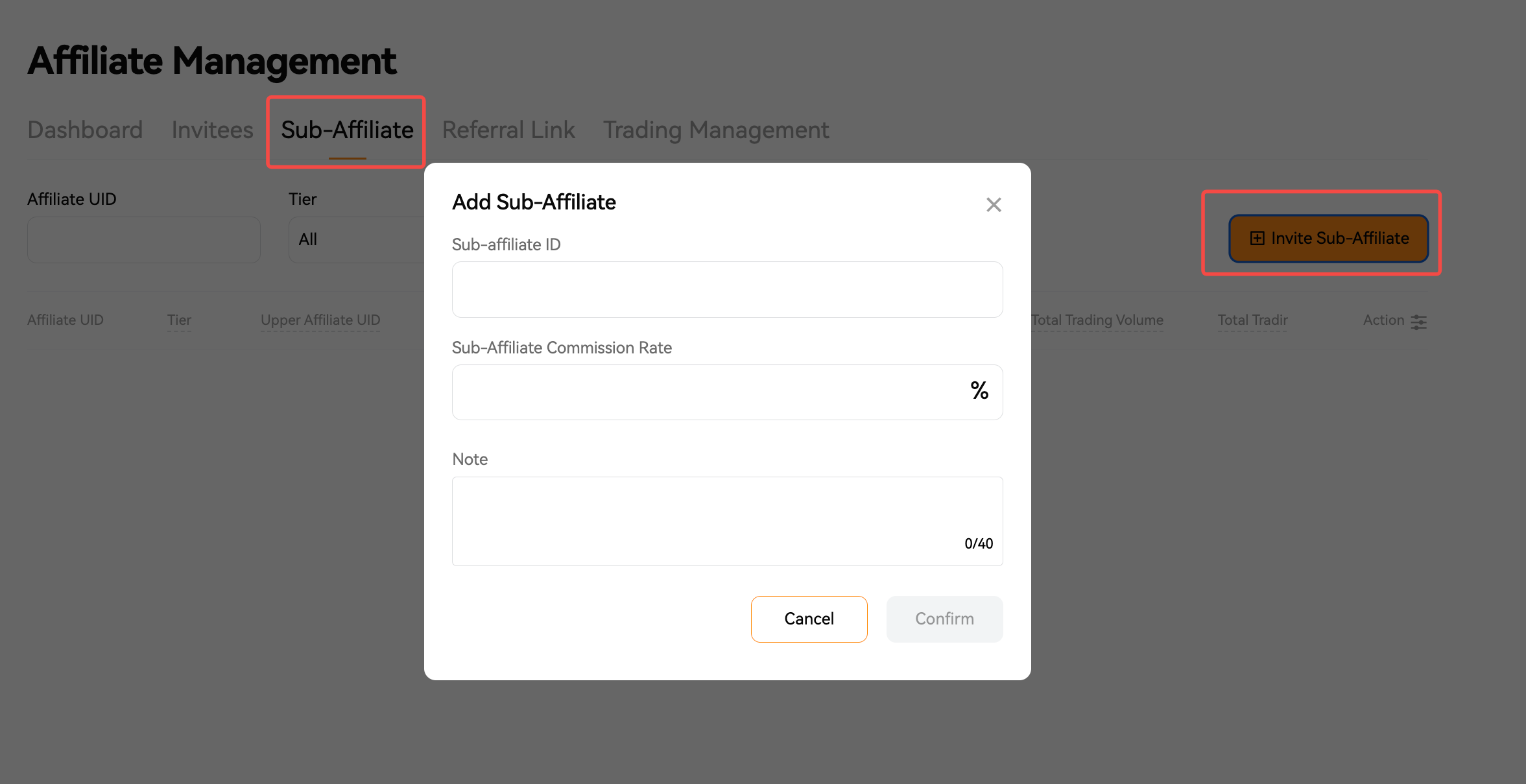
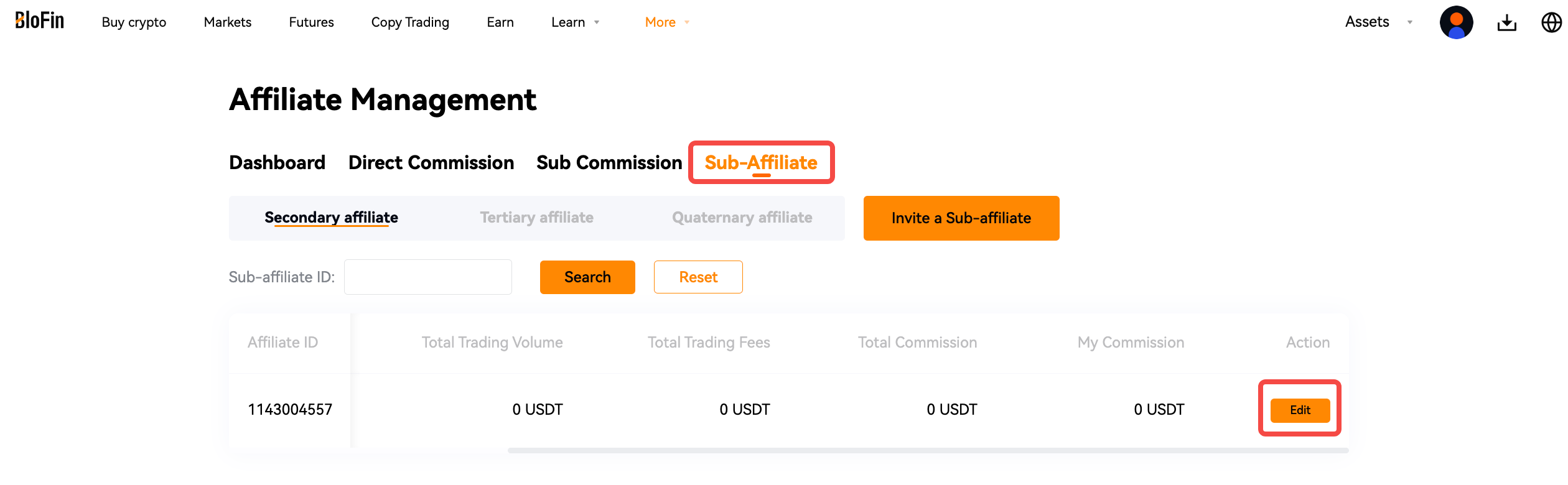
Manage existing sub-affiliates
Step 2: Locate the specific Affiliate ID and click [Edit].
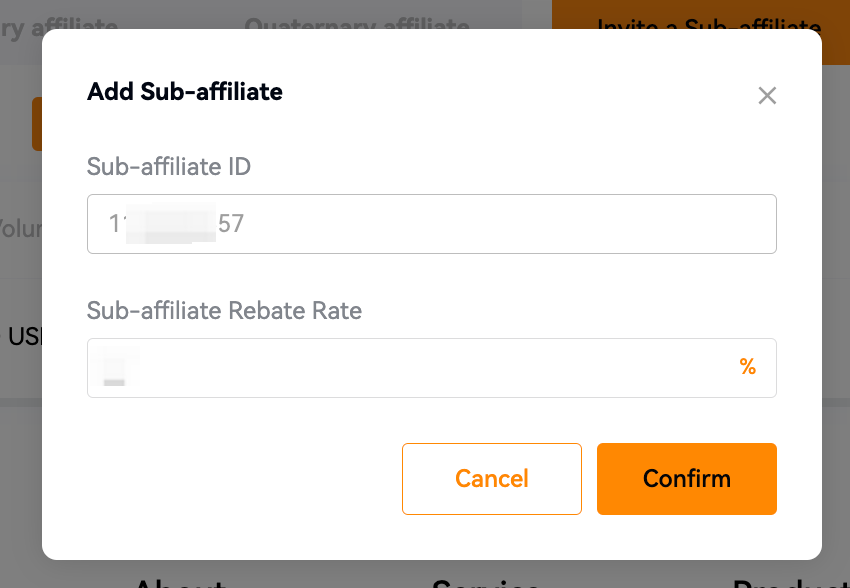
Step 3: Adjust the rebate rate as needed.
Please note that the sub-affiliate ID cannot be changed once created.
3. View Affiliate Data
1. Dashboard
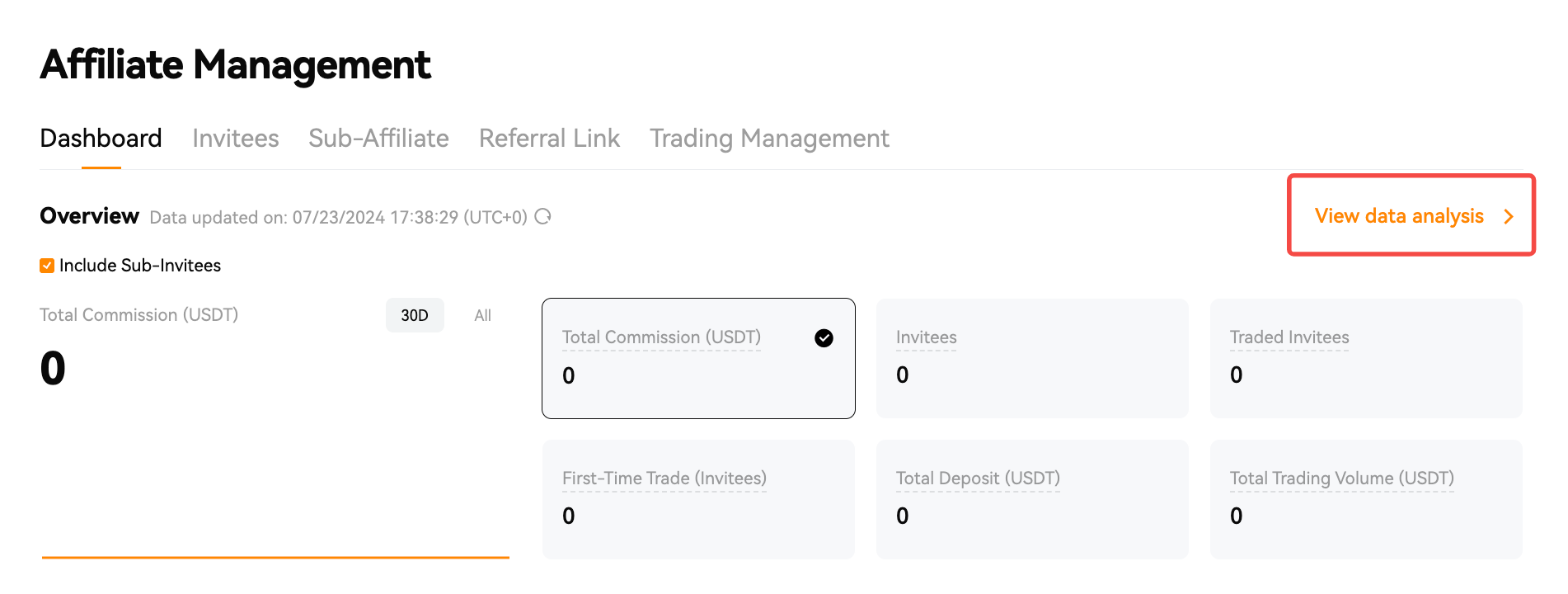
There are three sections on the Dashboard, including invitees and commission overview, Default referral link and Recently Registered.
Overview of Invitees and Commission:
Total Commission (USDT: The total commission for futures trading generated by direct invitees and sub-invitees.
Invitees: The total number of direct invitees and sub-invitees added.
Traded Invitees: The total number of all direct invitees and sub-invitees who traded futures.
First-Time Trade (Invitees): The total number of direct invitees and sub-invitees who traded futures for the first time.
Total Deposit (USDT): The total deposit amount of all direct invitees and sub-invitees .
Total Trading Volume (USDT): The total trading volume generated by all direct invitees and sub-invitees in futures trading.
By clicking View Data Analysis, you can access the data page to choose a time range and review commission details, invitee statistics, trading volume, and trading fees.
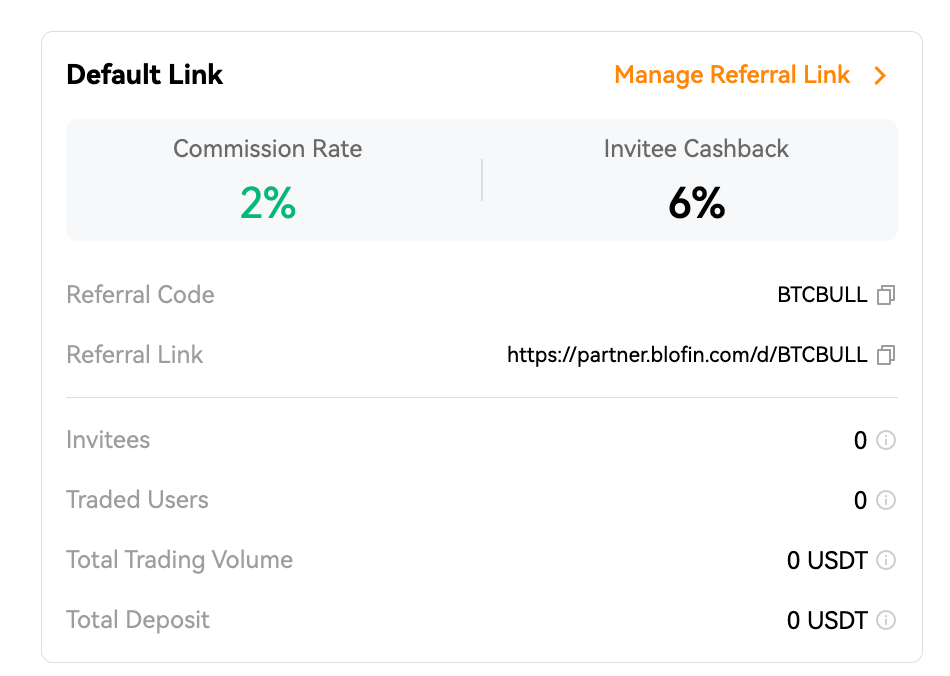
Default referral link:
This section shows the default referral link, along with details on invitees, traded users, total trading volume, and total deposits. By clicking on [Manage Referral Link], you can access the referral link page to manage existing links and create new ones.
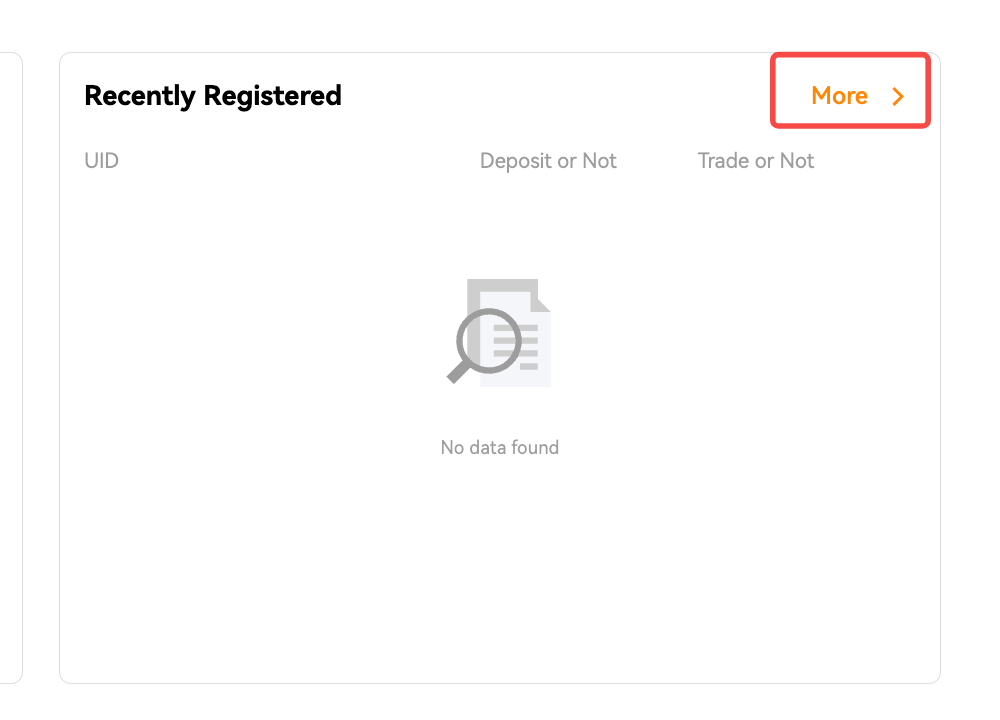
Recently Registered:
This section shows the recently registered UIDs along with their deposit and trade details. Clicking on [More] will redirect you to the Invitees page for further information.
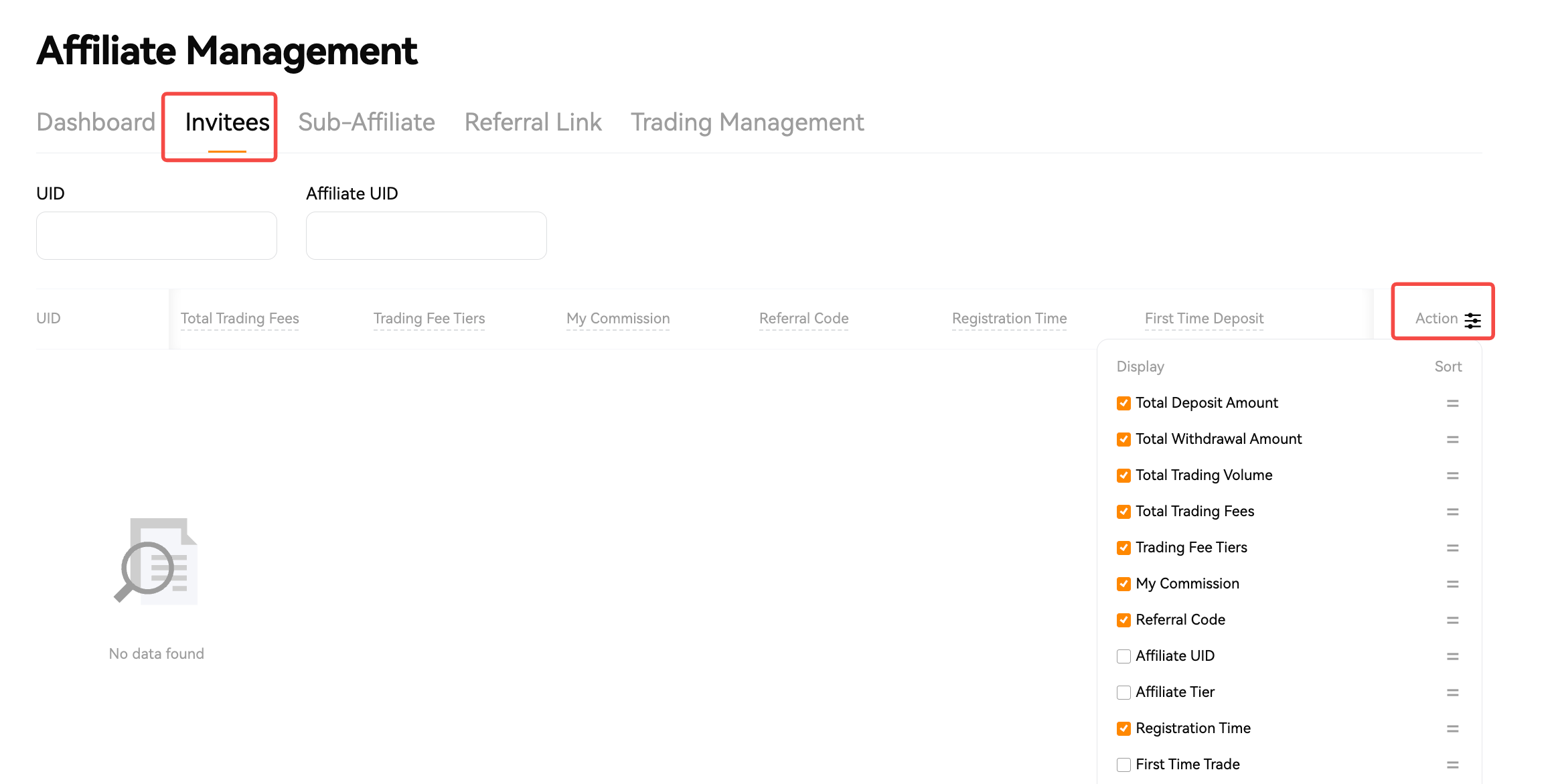
2. Invitees Page
This page lists details of all direct Invitees and sub-invitees, including Total Deposit Amount, Total Withdrawal Amount, Total Trading Volume, Total Trading Fees, Trading Fee Tiers, My Commission, Referral Code, and others.
You can search for a UID to check, or click on [Action] to customize the fields you wish to view.
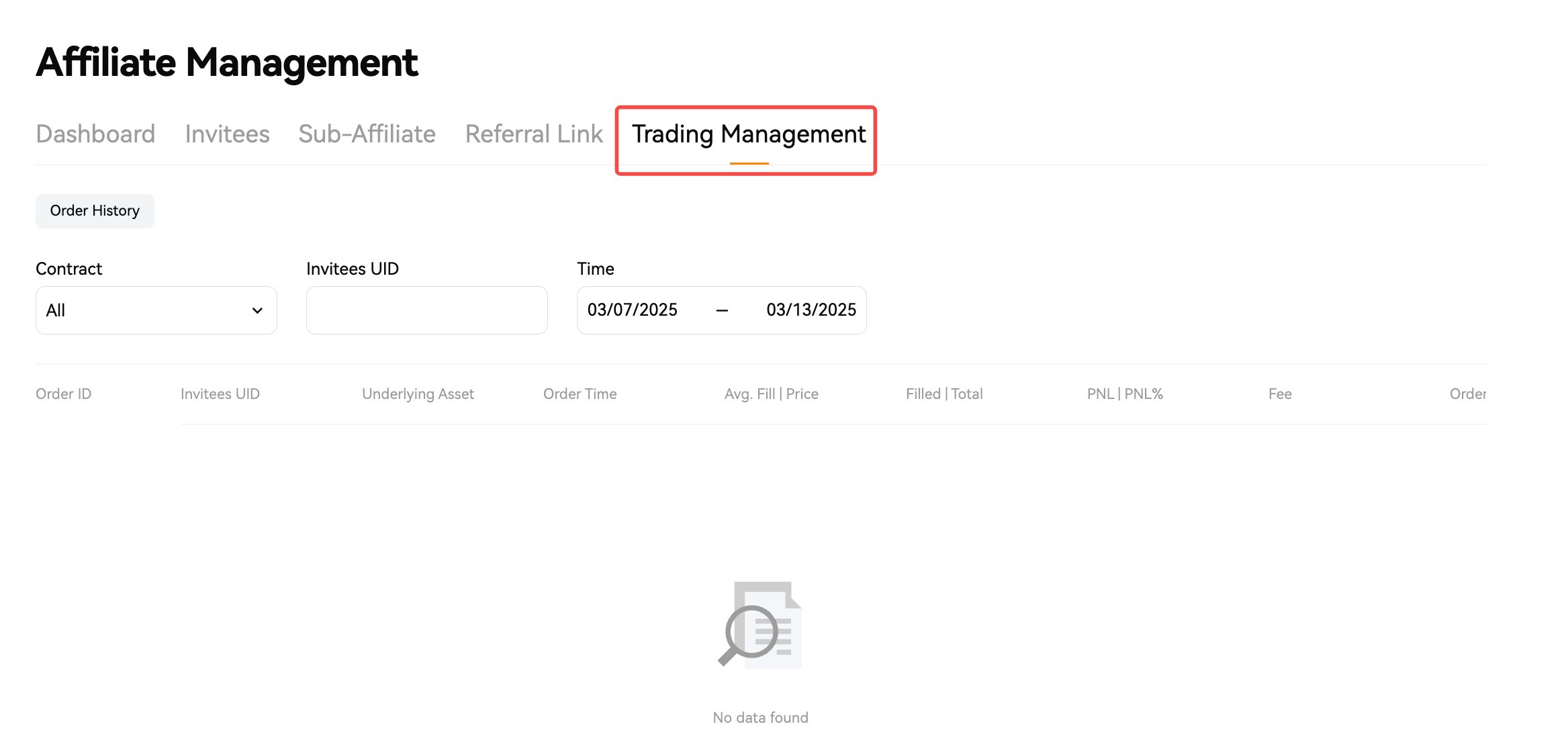
3. Trading Management
This page enables you to review all trades initiated by invitees. You can search by contract, invitee's UID, and time range.